Requesting Display Mode Transitions in MCP Apps (August 2026)
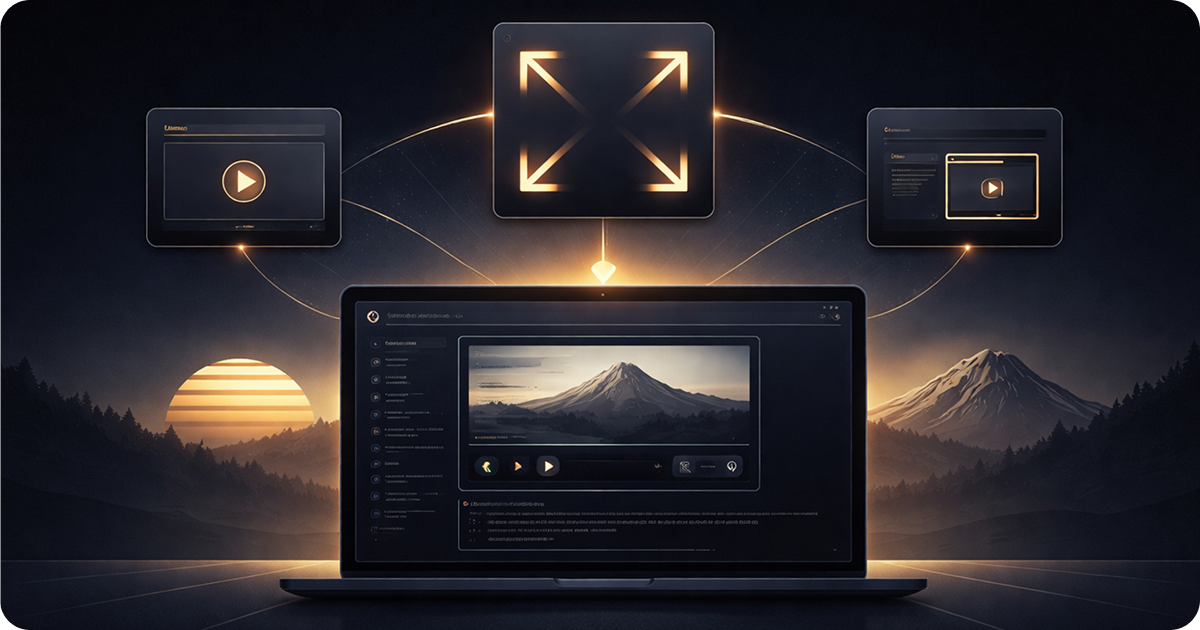
MCP App resources can request display mode transitions directly from user interactions.
An MCP App may start as a compact card, then need more room for a table, editor, map, or dashboard. Display mode requests let the app ask its host to move between inline, fullscreen, and picture-in-picture surfaces without reloading the resource.
The request is only one step in the contract. The app declares which modes it can render, the host advertises which modes are available, and the host decides which mode it actually applies. Code that skips those checks tends to ship dead buttons or layouts that break in another host.
The same MCP Apps contract applies when a resource runs as a ChatGPT App or an interactive Claude Connector, but each host and surface can advertise a different mode set. That is why runtime capability checks matter more than host-name checks.
TL;DR: Check the host’s available modes before showing a control. In sunpeak, call requestDisplayMode('fullscreen'), not requestDisplayMode({ mode: 'fullscreen' }). Await the request, then treat useDisplayMode() as the source of truth. Keep every layout usable when PiP or fullscreen is missing, and test both accepted and unavailable transitions.
The Three MCP App Display Modes
The stable MCP Apps specification defines three values:
| Mode | What the host does | Good uses |
|---|---|---|
inline | Embeds the app in the conversation flow | Summaries, cards, compact results, entry points |
fullscreen | Gives the app the host window or its main available app area | Editors, maps, large tables, multi-step forms |
pip | Places the app in a floating picture-in-picture surface | Timers, media, status panels, reference views |
These names describe presentation, not fixed pixel sizes. A fullscreen app still needs to read container dimensions and safe area insets. A PiP window can be narrow, and an inline card can grow within limits set by the host. The host context guide covers those layout inputs.
How the Protocol Decides Whether a Transition Can Happen
A portable display mode flow has four parts:
- During
ui/initialize, the app declares every mode its UI supports inappCapabilities.availableDisplayModes. - The host returns its current mode and supported modes in
hostContext.displayModeandhostContext.availableDisplayModes. - The app sends
ui/request-display-modewith the desired mode. - The host returns the mode it actually set, then sends host context updates when the runtime mode changes.
The host and app capability lists both matter. The specification says an app must check the host’s available modes before requesting one. It also allows the host to decline a mode that the app did not declare during initialization.
At the low level, the MCP Apps SDK exposes that exchange directly:
import { App } from '@modelcontextprotocol/ext-apps';

const app = new App(
  { name: 'report-viewer', version: '1.0.0' },
  { availableDisplayModes: ['inline', 'fullscreen'] }
);

await app.connect();

const context = app.getHostContext();

if (context?.availableDisplayModes?.includes('fullscreen')) {
  const result = await app.requestDisplayMode({ mode: 'fullscreen' });

  if (result.mode !== 'fullscreen') {
    console.info(`Host kept the app in ${result.mode} mode`);
  }
}
The returned result.mode is useful because the host can keep the current mode or apply a different one. Do not update your UI from the requested value alone.
Request Display Modes in React with sunpeak
sunpeak gives React resources two focused hooks:
useDisplayMode()returns the current host-applied mode.useRequestDisplayMode()returnsrequestDisplayMode(mode)andavailableModes.
The convenience hook accepts the mode string:
import { useDisplayMode, useRequestDisplayMode } from 'sunpeak';

export function ExpandButton() {
  const displayMode = useDisplayMode();
  const { requestDisplayMode, availableModes } = useRequestDisplayMode();

  const canFullscreen = availableModes?.includes('fullscreen') ?? false;

  if (!canFullscreen || displayMode === 'fullscreen') {
    return null;
  }

  return (
    <button type="button" onClick={() => requestDisplayMode('fullscreen')}>
      Expand
    </button>
  );
}
This API shape is easy to mix up with the lower-level SDK. Use requestDisplayMode('fullscreen') with the sunpeak hook. Use app.requestDisplayMode({ mode: 'fullscreen' }) with the MCP Apps App instance.
availableModes can be undefined while the bridge connects or when a host omits the optional field. Treat that as “not confirmed yet.” Hiding an optional expand control is safer than showing a button that may do nothing.
Build a Complete Mode Switcher
A production control should prevent repeated requests, expose only available choices, and recover if the host rejects the request:
import { useState } from 'react';
import { useDisplayMode, useRequestDisplayMode } from 'sunpeak';
import type { AppDisplayMode } from 'sunpeak';

export function DisplayModeControls() {
  const displayMode = useDisplayMode();
  const { requestDisplayMode, availableModes } = useRequestDisplayMode();
  const [pendingMode, setPendingMode] = useState<AppDisplayMode | null>(null);
  const [error, setError] = useState<string | null>(null);

  const request = async (mode: AppDisplayMode) => {
    setPendingMode(mode);
    setError(null);

    try {
      await requestDisplayMode(mode);
    } catch {
      setError('The host could not change the display mode.');
    } finally {
      setPendingMode(null);
    }
  };

  const canPip = availableModes?.includes('pip') ?? false;
  const canFullscreen = availableModes?.includes('fullscreen') ?? false;
  const canInline = availableModes?.includes('inline') ?? false;

  return (
    <fieldset>
      <legend>Display options</legend>
      {displayMode === 'inline' && canPip && (
        <button type="button" disabled={pendingMode !== null} onClick={() => request('pip')}>
          {pendingMode === 'pip' ? 'Opening...' : 'Pop out'}
        </button>
      )}

      {displayMode !== 'fullscreen' && canFullscreen && (
        <button
          type="button"
          disabled={pendingMode !== null}
          onClick={() => request('fullscreen')}
        >
          {pendingMode === 'fullscreen' ? 'Expanding...' : 'Expand'}
        </button>
      )}

      {displayMode !== 'inline' && canInline && (
        <button type="button" disabled={pendingMode !== null} onClick={() => request('inline')}>
          Return to conversation
        </button>
      )}

      {error && <p role="status">{error}</p>}
    </fieldset>
  );
}
The control does not set a local displayMode after the promise resolves. useDisplayMode() updates from host context, so the rendered state follows the host’s decision.
If the change can take long enough to notice, keep the pending label. Do not move focus automatically when the mode changes. The same controls and content should remain keyboard reachable after the host resizes or relocates the iframe. The MCP App accessibility testing guide has checks for focus order, labels, touch targets, and zoomed layouts.
Choose Modes Based on the Task
Fullscreen works well when the user has chosen a focused task:
- Editing a document or configuration.
- Comparing many rows or columns.
- Working with a map, canvas, or timeline.
- Completing a multi-step form.
PiP is better when the app should stay visible while the conversation continues:
- A timer or live status.
- Media controls.
- A small reference panel.
- Progress for a long-running operation.
Inline should remain a complete fallback. If a host advertises only inline mode, the user should still be able to read the result and start the main action. You can replace a wide table with a summary and detail rows, or split a large form into smaller steps.
Do not hardcode mode support from a host name. Host capabilities can differ across web, desktop, mobile, account policy, and release version. Check availableModes at runtime, which is the same feature-detection pattern used for other optional MCP App APIs.
Make the Layout Follow the Applied Mode
Mode-specific layout should branch on useDisplayMode(), not on the last button the user clicked:
import { SafeArea, useDisplayMode, useToolData } from 'sunpeak';

interface Report {
  title: string;
  rows: Array<{ label: string; value: string }>;
}

export function ReportView() {
  const displayMode = useDisplayMode();
  const { output } = useToolData<unknown, Report>(undefined, undefined);

  if (!output) return null;

  const fullscreen = displayMode === 'fullscreen';

  return (
    <SafeArea
      style={{
        display: 'grid',
        gridTemplateColumns: fullscreen ? 'repeat(2, minmax(0, 1fr))' : '1fr',
        gap: '0.75rem',
        padding: '1rem',
      }}
    >
      <h1 style={{ gridColumn: '1 / -1' }}>{output.title}</h1>
      {output.rows.map((row) => (
        <section key={row.label}>
          <h2>{row.label}</h2>
          <p>{row.value}</p>
        </section>
      ))}
    </SafeArea>
  );
}
Keep application state outside the layout branch so a transition does not reset an editor, selection, or scroll-dependent workflow. Mode changes should resize the experience, not restart it.
Test Supported and Missing Modes
The sunpeak inspector lets you switch host, display mode, theme, and device size without deploying the MCP server. Its host profiles advertise their own mode sets, so a mode picker can test both the happy path and a missing-mode fallback.
Start with a layout matrix:
import { test, expect } from 'sunpeak/test';

const displayModes = ['inline', 'pip', 'fullscreen'] as const;

for (const displayMode of displayModes) {
  test(`report renders in ${displayMode}`, async ({ inspector }) => {
    const result = await inspector.renderTool('show-report', undefined, { displayMode });
    const app = result.app();

    await expect(app.getByRole('heading', { name: 'Quarterly report' })).toBeVisible();

    if (displayMode === 'fullscreen') {
      await expect(app.getByRole('button', { name: 'Expand' })).toBeHidden();
    }
  });
}
Then test the transition itself:
test('expand changes the applied layout', async ({ inspector }) => {
  const result = await inspector.renderTool('show-report', undefined, {
    displayMode: 'inline',
  });
  const app = result.app();

  await app.getByRole('button', { name: 'Expand' }).click();
  await expect(app.getByRole('button', { name: 'Return to conversation' })).toBeVisible();
});
Add unit tests for capability branches by mocking the hooks:
vi.mock('sunpeak', () => ({
  useDisplayMode: () => 'inline',
  useRequestDisplayMode: () => ({
    requestDisplayMode: vi.fn(),
    availableModes: ['inline'],
  }),
}));
That case should render useful inline content with no Expand or Pop out button. Also cover a rejected promise, rapid double-clicks, and a host-applied mode that differs from the requested mode.
Display Mode Review Checklist
Before shipping a display mode control:
- Declare the modes the app supports during initialization.
- Check the host’s
availableDisplayModesbefore rendering each control. - Call the sunpeak hook with a string, or the low-level SDK with
{ mode }. - Await requests and handle rejections.
- Read the applied mode from host context.
- Keep inline useful when optional modes are absent.
- Preserve app state across transitions.
- Test each layout, capability fallback, keyboard path, and device width.
Build and test the same display mode flow across compatible hosts with the sunpeak MCP App framework. Start a project with npx sunpeak new, then use the inspector and Playwright fixtures to cover transitions before deployment.
Get Started
npx sunpeak newFurther Reading
- MCP App display mode reference - layouts for inline, PiP, and fullscreen
- MCP App capability detection - host features, fallbacks, and tests
- MCP App host context - display mode, container size, and safe areas
- Cross-host compatibility testing for MCP Apps
- Accessibility testing for MCP App controls and layouts
- MCP App framework - build portable interactive resources
- MCP App inspector - test host states locally
- sunpeak useRequestDisplayMode hook reference
- sunpeak requestDisplayMode SDK reference
- MCP Apps stable specification - display mode contract
- MCP Apps App API - requestDisplayMode return value
Frequently Asked Questions
How do I make an MCP App go fullscreen?
Read the host-supported modes, then request fullscreen from a user action. In sunpeak React code, call const { requestDisplayMode, availableModes } = useRequestDisplayMode(), check availableModes?.includes("fullscreen"), and await requestDisplayMode("fullscreen"). Use useDisplayMode() as the source of truth for the mode the host actually applied.
What display modes can an MCP App request?
The MCP Apps specification defines "inline", "fullscreen", and "pip". Inline places the app in the conversation flow, fullscreen uses the host window or available screen area, and pip places the app in a floating picture-in-picture surface. A host can support only a subset, and the app must work when a requested mode is unavailable or declined.
What is useRequestDisplayMode in sunpeak?
useRequestDisplayMode is a sunpeak React hook that returns requestDisplayMode(mode), an async function, and availableModes, the modes advertised by the current host. The hook accepts a string such as "fullscreen", not an object. It wraps the lower-level MCP Apps App.requestDisplayMode({ mode }) method.
What is the difference between useDisplayMode and useRequestDisplayMode?
useDisplayMode reads the current host-applied mode and updates when host context changes. useRequestDisplayMode exposes the function that asks for another mode and the list of modes the host says are available. Use both because a request is only a request, while useDisplayMode reports the resulting runtime state.
Can a host return a different display mode than the app requested?
Yes. The MCP Apps protocol requires the host to return the mode it actually set, which may differ from the requested mode. The low-level App.requestDisplayMode method returns that result. sunpeak React code should observe useDisplayMode after awaiting the request because the convenience hook does not return the result object.
Should an MCP App request fullscreen when it mounts?
Usually no. Put display mode changes behind a clear user action such as Expand, Pop out, Done, or Close. Automatic mode changes can be surprising and may be declined by a host. The app should render a useful inline layout first and keep working if the request fails.
How should an MCP App handle picture-in-picture support?
Show a picture-in-picture control only when availableModes includes "pip". Do not infer support from the host name, browser width, or platform because host capabilities can vary by surface and release. If pip is missing, keep the inline experience useful or offer fullscreen when that mode is available.
How do I test MCP App display mode transitions?
Test three things: the layout in each mode, which controls appear for each advertised capability set, and the transition after a user clicks a control. The sunpeak inspector can switch host, display mode, theme, and device size locally. Playwright tests can pass displayMode to inspector.renderTool and click controls inside the rendered app.
