How to Run Your ChatGPT App Locally (September 2026)
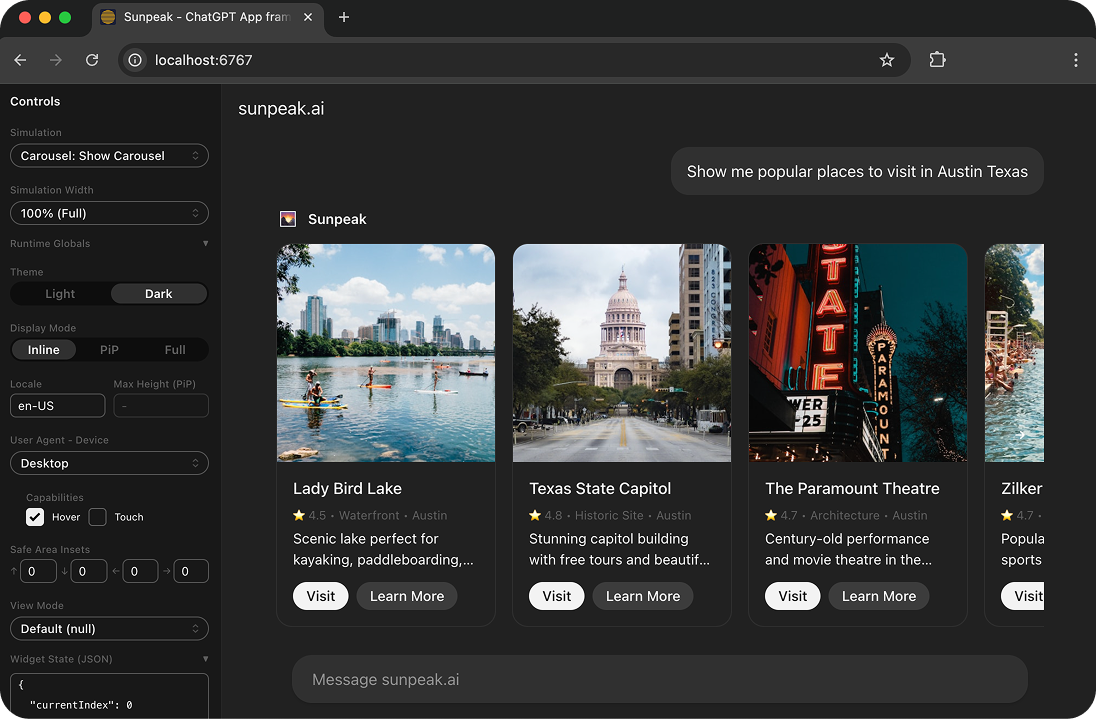
The sunpeak Inspector replicating the ChatGPT App runtime locally.
You can run a ChatGPT App locally without connecting ChatGPT. Start the MCP server on your machine, render its UI resource in a local host runtime, and test the tool-to-UI flow there. Connect the same server to ChatGPT only when you need to prove the real account, network, model, and host path.
sunpeak provides that local loop. Its Inspector reproduces the MCP App host boundary in a browser, including the sandboxed iframe, tool input and results, host context, display modes, and app bridge. It also turns those local states into automated tests you can run in CI.
TL;DR: Run npx sunpeak new sunpeak-app, then cd sunpeak-app && pnpm dev. Open localhost:3000 for the Inspector. The generated MCP endpoint runs at http://localhost:8000/mcp. Test locally first, then use Secure MCP Tunnel or a public HTTPS forwarding URL for a focused ChatGPT check.
What Runs on Your Machine
A ChatGPT App is an MCP App running in ChatGPT. OpenAI distributes these integrations as Plugins, but the interactive UI still follows the MCP Apps pattern:
- An MCP server exposes tools.
- A tool descriptor links to a
ui://resource through_meta.ui.resourceUri. - The host reads the resource and renders its HTML in a sandboxed iframe.
- The host sends tool input and results to the app over the
ui/*bridge. - The app can call allowed server tools or ask the host to perform supported actions.
The MCP Apps overview describes UI as an optional extension to MCP. That matters for local development because the tool should remain useful when a client cannot render the UI. Return a useful text result and typed structuredContent, then add the app as a richer view over that result.
You are testing two connected contracts:
| Contract | What must work |
|---|---|
| MCP server | Initialize, tools/list, tools/call, resource discovery, resources/read, auth |
| MCP App | UI resource metadata, HTML MIME type, sandbox loading, tool data, app bridge, host context |
A component preview covers neither contract by itself. A real local host replica calls the MCP server, follows the resource link, creates the iframe, and delivers the same classes of input that a production host sends.
Create a Local ChatGPT App
Install Node.js 20 or newer, then scaffold a project:
npx sunpeak new sunpeak-app
cd sunpeak-app
pnpm dev
The project name is optional. Running npx sunpeak new without it opens the interactive setup.
The generated app includes the server, UI resources, tool handlers, simulations, and test setup:
sunpeak-app/
├── src/
│   ├── resources/       # React UIs served as MCP App resources
│   ├── tools/           # Tool schemas and handlers
│   └── server.ts        # MCP server and auth configuration
├── tests/
│   ├── simulations/     # Saved tool input and result states
│   ├── e2e/             # Inspector tests with Playwright
│   ├── live/            # Focused real-host tests
│   └── evals/           # Model tool-selection tests
└── package.json
By default, pnpm dev starts:
- The Inspector at
http://localhost:3000. - A Streamable HTTP MCP server at
http://localhost:8000/mcp. - Hot Module Reload for the resource UI.
- Automatic tool rebuilds and refresh notifications for the MCP server.
The terminal is the source of truth for assigned ports. If another process owns a default port, use the URLs that sunpeak prints.
The normal edit loop is short:
- Select a tool and simulation in the Inspector.
- Edit the resource component or tool.
- Watch the current state update.
- Switch theme, display mode, viewport, or host context.
- Save the bug or edge case as a simulation.
- Add a Playwright assertion before moving on.
This keeps daily development off the live ChatGPT path, so you are not spending time reopening chats, refreshing metadata, waiting for model selection, or using host credits for every CSS change.
Inspect an Existing MCP Server
You do not need to move an existing server into a sunpeak project. Run the server as usual, then point the Inspector at its MCP endpoint:
npx sunpeak inspect --server http://localhost:8000/mcpThe command accepts an HTTP URL or a stdio command:
npx sunpeak inspect --server "python server.py"Use --header for HTTP credentials, or --env and --cwd for a stdio process. The sunpeak Inspector docs list the full command surface.
Standalone inspection is useful when:
- The MCP server is written in Python, Go, Rust, or another stack.
- You are adding an interactive UI to a working tool.
- A tool works in a protocol client but does not render in ChatGPT.
- You want browser tests without replacing your server framework.
- You need saved fixtures for errors that are hard to reproduce against a real backend.
If the server has no UI yet, the Inspector still lets you call backend-only tools and inspect their inputs and results. Add the ui:// resource after the tool contract is stable.
Verify the MCP App Contract
When an app does not render, check the protocol before React. The shortest useful readiness check has six gates.
1. Reach the transport
Confirm the local process is listening and that your MCP client can initialize a Streamable HTTP session at the exact path you plan to connect:
http://localhost:8000/mcpA plain browser GET or curl is not a full MCP test because Streamable HTTP uses MCP requests, session handling, and content negotiation. Use sunpeak, MCP Inspector, or a small protocol test to initialize the server and call methods.
2. Inspect the tool descriptor
Call tools/list and check:
- The name is stable and specific.
- The description says when the model should and should not call it.
- The input schema rejects invalid arguments.
- An
outputSchemamatchesstructuredContentwhen you declare one. - Read, write, destructive, and open-world annotations match behavior.
- UI tools include
_meta.ui.resourceUri.
For standards-first code, the link looks like:
_meta: {
  ui: {
    resourceUri: 'ui://orders/summary/v3.html',
  },
}
OpenAI’s current UI guide recommends the shared MCP Apps field for new code. _meta["openai/outputTemplate"] remains a ChatGPT compatibility alias, so use it only when your target host or existing integration requires it.
3. Read the UI resource
Call resources/read for the exact URI advertised by the tool. The returned content should use the MCP Apps HTML media type:
text/html;profile=mcp-appMake sure the HTML contains the current bundle, loads all declared assets, and declares only the CSP domains it needs. Treat the ui:// URI as a cache key. When you ship a breaking resource change, publish a new versioned URI and update the tool descriptor.
4. Call the tool
Exercise valid, empty, large, unauthorized, and invalid inputs. Separate data by audience:
contentgives the model a useful text result.structuredContentgives the model and app typed result data._metacarries app-only data that should not enter model context.
Do not put secrets in any field just because the local app can read it. The server still owns authorization, filtering, and tenant boundaries.
5. Render the iframe
Open the tool in the Inspector and check the browser console and network panel. A correct server response can still fail because an asset violates CSP, a request assumes the parent page origin, or the app expects a normal browser environment instead of a sandbox.
Test the app with storage unavailable, narrow widths, changing host context, and no host-specific extension. Feature-detect optional ChatGPT APIs. Keep the shared ui/* bridge path working first.
6. Test model selection
Protocol checks prove the tool can run. They do not prove a model will choose it. Create an eval set with:
- Direct prompts that should call one named tool.
- Indirect prompts that express the same goal.
- Follow-ups that reuse an identifier from an earlier result.
- Write prompts that require auth or confirmation.
- Unsupported prompts that should not call the tool.
This set becomes more useful when you keep it across releases and compare tool-selection results after changing names, descriptions, or schemas.
Build Local States That Find Real Bugs
The fastest way to improve local coverage is to save states that production data will eventually create.
For each UI resource, include:
- A normal result with realistic data.
- An empty result with a clear next action.
- A partial result where optional fields are missing.
- A long result that stresses wrapping, scrolling, and table width.
- An auth-required or expired-session result.
- A server error with retry behavior.
- A slow or in-progress state if the tool can take time.
Then run each state in the host contexts your app supports. At minimum, check light and dark themes, inline mode, the narrowest supported viewport, and any expanded display mode your app requests. Also verify focus order, keyboard operation, accessible names, and reduced motion.
sunpeak simulations are JSON fixtures under tests/simulations/. They load without calling a paid API or mutating a real account, which makes them suitable for Playwright and CI. When you fix a bug, save the failing payload and keep it as a regression case.
Add Automated Tests
Run the default suite:
pnpm testThe generated scripts let you split checks by ownership:
pnpm test:unit
pnpm test:e2e
pnpm test:visual
pnpm test:eval
pnpm test:live
Use the lowest test layer that can answer the question:
| Question | Best test |
|---|---|
| Does the handler validate input and return the right result? | Unit test |
| Does the descriptor point to a readable UI resource? | MCP protocol test |
| Does the UI handle empty, error, and long-data states? | Simulation-based E2E test |
| Does the layout hold across themes and display modes? | Visual test |
| Will a model select the intended tool? | Repeated eval |
| Can the real ChatGPT account reach, call, and render the app? | Small live test |
Keep the broad regression suite local. Real-host tests are slower and can vary with login state, workspace policy, model behavior, and host UI changes. One or two live tests can still catch the boundaries that a replica cannot own: the actual ChatGPT connection, metadata snapshot, model routing, and production sandbox.
The complete ChatGPT App testing guide covers the full suite. For release planning, use the MCP App testing strategy to decide which checks belong on every change and which belong on a scheduled run.
Choose How ChatGPT Reaches Localhost
ChatGPT cannot call localhost on your laptop directly. OpenAI’s current connection guide supports two development paths:
| Connection | Server exposure | Best use | Production submission |
|---|---|---|---|
| Secure MCP Tunnel | Private, outbound connection to OpenAI | Private local or internal server testing | No |
| HTTPS forwarding URL | Public internet URL | Quick development check | No |
| Stable HTTPS deployment | Public production endpoint | Release and published Plugin | Yes |
Secure MCP Tunnel is the safer choice when the server should stay private. tunnel-client runs on the machine or network that can reach the MCP server and opens an outbound HTTPS path to OpenAI. The local server needs no public listener.
The setup requires a tunnel_id, a runtime API key, access to the target Platform organization, and ChatGPT Developer mode permission. For an HTTP server, the core commands follow this shape:
export CONTROL_PLANE_API_KEY="sk-..."

tunnel-client init \\
  --profile local-http \\
  --tunnel-id tunnel_0123456789abcdef \\
  --mcp-server-url http://localhost:8000/mcp

tunnel-client doctor --profile local-http --explain
tunnel-client run --profile local-http
Use the values and current binary from OpenAI’s Secure MCP Tunnel guide. Keep tunnel-client running while ChatGPT discovers and calls the server. Its local /ui page reports tunnel health and readiness.
An HTTPS forwarding service is simpler when public exposure is acceptable. Treat its URL as an internet-facing endpoint: require auth where needed, apply rate limits, validate every input, avoid production data, and shut it down after the test. Do not assume a random URL is a security control.
Neither development path replaces a stable public HTTPS endpoint for Plugin submission. Secure MCP Tunnel is for private connections and developer-mode testing.
Add the Local Server in ChatGPT
OpenAI’s Plugin quickstart currently uses this flow:
- Open ChatGPT settings.
- Select Security and login.
- Turn on Developer mode.
- Open ChatGPT Plugins.
- Select the plus button.
- Choose Tunnel and select the tunnel, or enter the public HTTPS MCP URL including
/mcp. - Review the discovered tools and metadata.
- Create the development connection.
- Start a new conversation and add the MCP connection from the tools menu.
Developer mode availability can depend on the account and workspace policy. Secure MCP Tunnel permissions are separate from ChatGPT Developer mode, so a workspace admin and a Platform organization owner may both need to grant access.
For the first check, use a direct prompt that names one expected action. Verify:
- ChatGPT discovers the current tool.
- The model sends valid arguments.
- The server receives the call under the expected user identity.
- The UI resource loads without console or network errors.
- One important app interaction completes.
Then test an indirect prompt and a negative prompt. A tool that fires on every vaguely related request is not ready just because the direct prompt works.
That flow tests the MCP server connection. To test the personal Plugin experience described in OpenAI’s quickstart, open your personal Plugins directory, install the Plugin, switch the ChatGPT homepage from Chat to Work, start a new Work chat, and type @ to select the Plugin. This extra step checks the installed package and invocation path, not only the underlying MCP connection.
After changing a tool name, description, schema, annotation, auth configuration, or UI resource:
- Restart or redeploy the MCP server.
- Open its connection in ChatGPT Plugins.
- Select Refresh.
- Confirm the advertised metadata changed.
- Start a new conversation.
- Rerun the affected prompts.
Developer-mode connections can refresh against the server. Published Plugins use reviewed metadata snapshots, so production metadata changes require a new scan and approved version.
Debug by Boundary
Classify the symptom before changing code:
| Symptom | Likely boundary | First check |
|---|---|---|
| ChatGPT cannot connect | Transport, tunnel, or auth discovery | Tunnel health and MCP initialize |
| Tool is missing | Metadata snapshot or tools/list | Refresh the connection and inspect the descriptor |
| Tool is never selected | Description, schema, or prompt fit | Positive and negative eval cases |
| Tool runs but no UI appears | Tool-to-resource link | _meta.ui.resourceUri and resources/read |
| Blank or broken iframe | HTML bundle, CSP, or asset URL | Browser console and failed requests |
| UI renders without data | Tool result contract | structuredContent and app-only _meta |
| Old UI keeps appearing | Resource cache | Versioned ui:// URI and fresh conversation |
| App works inline but fails expanded | Host context or responsive layout | Display mode and narrow-width simulations |
The ChatGPT App debugging guide goes deeper on each layer. The useful rule is to compare the same tool input and result in both places. If it fails in the Inspector and ChatGPT, fix your server or app. If it passes locally and fails only in ChatGPT, inspect the connection, cached metadata, host capability, auth, CSP, and network path.
Prepare the Same App for Production
Run the production build and local suite before a live release check:
pnpm build
pnpm test
Then verify:
- The production endpoint uses HTTPS and Streamable HTTP.
- Authentication and authorization happen on every protected call.
- Tool descriptions match actual behavior.
- Input and output schemas reject malformed data.
- UI resource URIs are versioned for breaking bundle changes.
- Old resource versions remain readable during rollout.
- CSP lists only required API, asset, and frame domains.
- App resources contain no localhost-only URLs.
- Empty, partial, error, auth, and large-data states pass locally.
- One narrow live test passes in a fresh ChatGPT conversation.
Keep the simulations and Playwright tests in CI. That is the part of local ChatGPT App development that compounds: every bug becomes a repeatable state, every state becomes a test, and every future release gets the same host-runtime coverage without another manual chat.
Start with the sunpeak quickstart for a new project. Use the MCP App Inspector with an existing server, or follow the full ChatGPT App tutorial for a complete build and deployment path.
Get Started
npx sunpeak newFurther Reading
- ChatGPT App tutorial - build a complete app from setup to deployment
- Complete guide to testing ChatGPT Apps
- How to debug ChatGPT Apps
- MCP App tool metadata - resourceUri and visibility
- MCP App resource caching and versioned UI
- How to deploy an MCP App to production
- Live testing ChatGPT Apps with Playwright
- sunpeak quickstart
- OpenAI Plugin quickstart
- Connect and test a plugin in ChatGPT
- OpenAI Secure MCP Tunnel guide
- MCP Apps overview and specification
Frequently Asked Questions
How do I run a ChatGPT App locally in 2026?
Create a project with "npx sunpeak new sunpeak-app", enter the directory, and run "pnpm dev". The default project opens the sunpeak Inspector at localhost:3000 and an MCP Streamable HTTP endpoint at localhost:8000/mcp. You can render tools, resources, and saved app states locally before you connect ChatGPT.
Do I need a ChatGPT account to build a ChatGPT App locally?
No. sunpeak replicates the ChatGPT MCP App runtime locally, so you can build the UI, call tools, test themes and display modes, and run Playwright tests without a ChatGPT account or host credits. You need an eligible account and Developer mode only for the final live-host check.
How do I connect a local MCP server to ChatGPT?
Enable Developer mode under Settings > Security and login, open ChatGPT Plugins, select the plus button, and add either a Secure MCP Tunnel or a public HTTPS Streamable HTTP URL that includes the /mcp path. Tunnel access and Developer mode can depend on your Platform organization and ChatGPT workspace permissions.
Is Secure MCP Tunnel the same as a public tunnel?
No. Secure MCP Tunnel creates an outbound connection from tunnel-client to OpenAI, so the local MCP server does not need a public listener. A normal HTTPS forwarding URL exposes a public endpoint and needs the same authentication and authorization controls as any internet-facing service. Secure MCP Tunnel supports private development connections, not public plugin submission.
What should I check when a ChatGPT App tool works but its UI does not render?
Read the tool descriptor from tools/list and confirm _meta.ui.resourceUri points to a readable ui:// resource. Then call resources/read for that URI, verify the resource uses text/html;profile=mcp-app, inspect CSP and asset requests, and confirm the tool result matches the data shape the app expects.
Can I inspect an existing MCP server without moving it into sunpeak?
Yes. Run "npx sunpeak inspect --server http://localhost:8000/mcp" or pass a stdio command. The Inspector can browse tools, call real handlers, render linked MCP App resources, switch host context, and save repeatable simulations around a server written in any language.
How do I automate local ChatGPT App testing?
Use unit tests for handlers, protocol tests for tools and resources, saved simulations for UI states, Playwright tests against the sunpeak Inspector, visual tests for layout, and evals for tool selection. Keep a small live test for the real ChatGPT connection after the local suite passes.
Why does ChatGPT still use old tool metadata after I restart my server?
ChatGPT can retain the metadata it discovered when the development connection was created or refreshed. After changing tool names, descriptions, schemas, annotations, authentication, or UI resources, restart the server, open the connection in ChatGPT Plugins, select Refresh, verify the new metadata, and start a new conversation.