How to Debug ChatGPT Apps: Troubleshooting Guide for MCP App Development (September 2026)
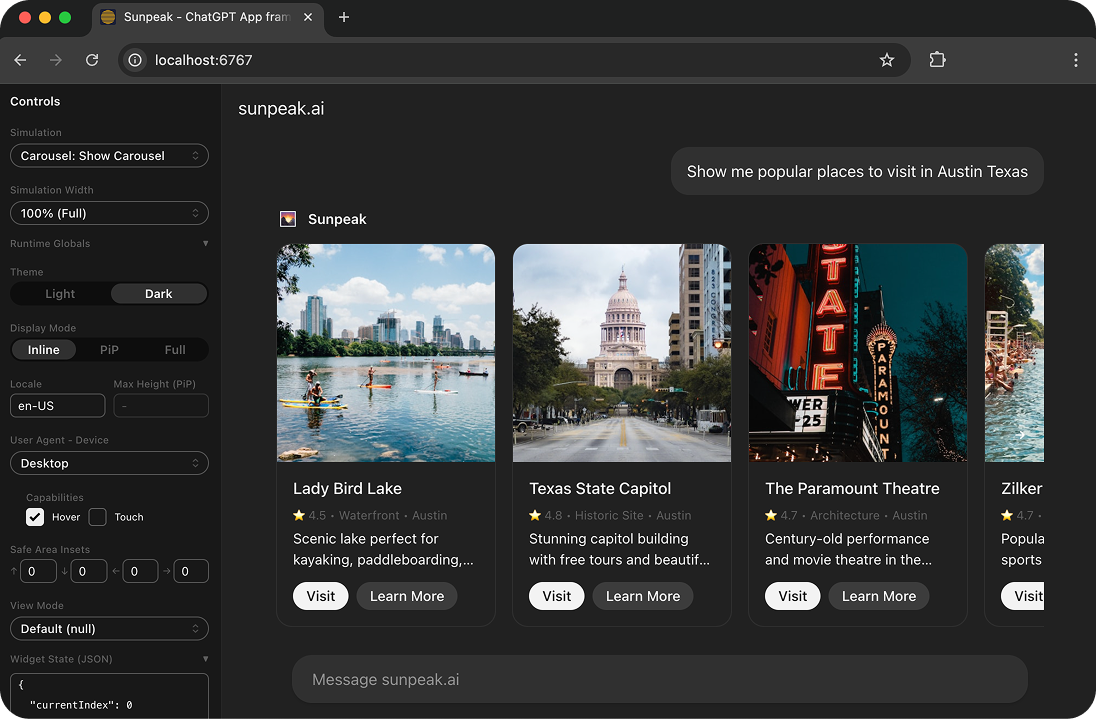
Debug ChatGPT Apps locally with the sunpeak inspector and browser DevTools.
ChatGPT App failures often look alike. A missing tool, a schema rejection, a stale UI resource, a CSP block, and a React crash can all end with “the app did not open.” Randomly editing the component is slow because the visible symptom rarely tells you which boundary failed.
The faster approach is to follow the request through each boundary and stop at the first missing fact.
TL;DR: Debug in this order: server discovery, model tool selection, tool execution, UI resource lookup, iframe startup, result delivery, host state, authentication, then deployment and caching. Save the exact evidence at each step. Once you find the first broken boundary, write a test there and a browser check for the user-visible result.
Use a Boundary Map, Not a Symptom List
A UI-backed ChatGPT App crosses two protocols and several owners:
- ChatGPT connects to the MCP server.
- The client discovers tools and their metadata.
- The model chooses a tool and creates arguments.
- The server executes the tool and returns a result.
- The host finds the linked
ui://resource. - The host loads the HTML in a sandboxed iframe.
- The iframe and host establish the MCP Apps
ui/*bridge. - The host sends tool input, tool results, and host context to the app.
- The app renders and may call more server tools.
Each step has a different source of truth. The server log can prove a tool call happened, but it cannot prove the iframe received the result. A browser console can prove the bundle crashed, but it cannot prove ChatGPT had the newest tool descriptor.
When you file a bug, record this small evidence set:
{
  "prompt": "Show open orders for this account",
  "expectedTool": "show-orders",
  "actualTool": "show-orders",
  "toolArguments": { "status": "open" },
  "toolResultSummary": "2 orders",
  "resourceUri": "ui://orders/app.a81f9c.html",
  "buildRevision": "a81f9c",
  "protocolVersion": "2026-07-28",
  "displayMode": "inline",
  "theme": "dark",
  "viewport": "390x844",
  "firstFailure": "resource request blocked by CSP"
}
Do not put access tokens, cookies, authorization codes, private result data, or full user prompts with secrets in that record. Use request IDs and trace IDs to join redacted logs.
1. Prove the MCP Server Is Discoverable
Start below the model and below the UI. Ask the server what it exposes.
The official MCP Inspector now provides web, CLI, and terminal clients from one package. The CLI is useful when you want a repeatable discovery check:
npx @modelcontextprotocol/inspector --cli \
  https://api.example.com/mcp \
  --transport http \
  --method tools/list \
  --format json
Check the following:
- The public URL reaches the intended
/mcpendpoint over Streamable HTTP. server/discoverreports a compatible modern protocol version when supported.tools/listreturns the expected tool in deterministic order.- The name, description, schemas, annotations, auth requirements, and UI metadata match the deployed revision.
- The result includes sensible
ttlMsandcacheScopevalues for modern 2026-07-28 clients.
The MCP 2026-07-28 specification removed the core initialize handshake and protocol-level HTTP sessions. A modern server request carries the protocol version and client capabilities in request _meta. If your logs wait for notifications/initialized or group tool lists by Mcp-Session-Id, you are debugging an older protocol era.
This does not mean every deployed client changed on the same day. Keep protocol-era negotiation visible in logs and tests. A server may need to support a current client and an older client during a migration window.
If discovery fails, stop here. Browser debugging will not fix the wrong endpoint, an unsupported protocol version, a missing tool, or a server that never started.
2. Separate Discovery From Model Tool Selection
A tool can appear in tools/list and still never be called. That is a metadata and evaluation problem, not a resource problem.
Build a small prompt set for each important tool:
- A direct request that should select it.
- An indirect request that expresses the same goal.
- A follow-up that reuses an identifier from an earlier result.
- A negative request that should not select it.
- A nearby request that should select a different tool.
- A write request that should require authorization or confirmation.
For each prompt, record the selected tool, arguments, result, and confirmation behavior. When selection fails, check whether the description says when the tool should be used, whether two tools claim the same job, and whether required fields match how people ask for the task.
OpenAI’s current plugin testing guide says to refresh the MCP connection after changing tool names, descriptions, schemas, annotations, authentication, or UI resources. Confirm the refreshed metadata, then start a new conversation. Testing an old conversation against new server code produces misleading results because the conversation may still reflect older tool metadata.
Do not widen a description until every prompt triggers the tool. Broad descriptions increase false positives. Add a disallowed case when a nearby tool owns that job.
3. Inspect the Tool Call and Its Error Class
Once the expected tool is selected, capture the exact arguments and response. There are several different failure classes:
- A JSON-RPC error means the protocol request failed.
- Schema rejection means the arguments or result did not match the advertised contract.
- A tool result with
isError: truemeans the tool ran and reported an application failure. - A 401 with
WWW-Authenticatemeans the client should start or restart authorization. - An
input_requiredresult means the current 2026-07-28 flow needs another round trip. - A timeout or broken response stream means the client may need to issue a new request with a new request ID.
Do not collapse those into one “tool failed” message. They have different retry, UI, and logging rules.
For result-shape bugs, compare outputSchema with the actual structuredContent. The 2026-07-28 core spec allows any JSON value, but apps and existing hosts may still be easier to maintain with a stable object wrapper. Pick one contract, version it deliberately, and validate it at the server boundary.
A good tool result keeps three jobs separate:
contentis a short model-readable result.structuredContentis the declared data contract used by the model and app.- Result
_metacarries app-only helper data, never secrets that an untrusted app should not receive.
Log the shape and size of the result, not the entire private payload. A field name, item count, schema version, request ID, and validation error usually provide enough evidence.
4. Prove the Tool Points to a Real UI Resource
If ChatGPT shows structured data but no component, inspect the tool descriptor.
OpenAI’s troubleshooting guide says the descriptor should set _meta.ui.resourceUri to a registered HTML resource with mimeType: "text/html;profile=mcp-app". ChatGPT also accepts _meta["openai/outputTemplate"] as an optional compatibility alias.
Verify all four facts:
- The descriptor contains the expected
ui://URI. resources/readaccepts that exact URI.- The response returns the MCP App HTML MIME type.
- The HTML references the intended build revision.
The resource link belongs on the tool descriptor because a host may preload the UI before the call finishes. A stale resource link can therefore break the component even when the tool result is correct.
Open the resource response as text. A 200 status is not enough. Confirm that it is the app HTML rather than an auth page, JSON error, framework shell without its bundle, or HTML from a different release.
5. Debug a Blank Iframe From the Inside Out
Once the resource exists, open the iframe console and Network panel. Work in this order:
- Check whether the main HTML request completed.
- Check every script, stylesheet, font, image, and dynamic import.
- Read the first JavaScript exception, not the last cascade of errors.
- Inspect CSP violations and the exact blocked origin.
- Confirm the bundle registers its bridge listeners before it expects host data.
- Confirm the iframe receives
ui/initialize, tool input, and tool result messages. - Confirm the app removes listeners when it unmounts.
The MCP Apps UI bridge has its own lifecycle. It uses JSON-RPC over postMessage, including ui/initialize, even though modern core MCP removed its separate initialize handshake. Keep these two state machines separate in code, logs, and tests.
Avoid “fixing” CSP by allowing every origin. List only the script, style, image, font, frame, and connection origins the app uses. A narrow policy turns a CSP failure into a useful signal when a new dependency starts calling an unexpected domain.
If the app works after a hard refresh but fails on first mount, look for listener timing, missing initial state, or a race between resource startup and tool-result delivery. If it works on first mount but fails after several calls, look for duplicate listeners, stale closures, and state that was not reset between tool results.
6. Debug Wrong, Missing, or Stale App Data
A rendered component can still show the wrong state. At that point, trace one field from the server to the DOM:
- Find the field in the raw tool result.
- Confirm it is in the expected result lane.
- Confirm the host delivered the expected tool-result notification.
- Confirm the app read the current notification rather than initial props or cached state.
- Confirm the render branch handles missing, empty, partial, error, and success values.
Common contract bugs include:
- The server returns
itemswhile the app readsresults. - A nullable field becomes absent and the app assumes it exists.
- Pagination data moves between
structuredContentand_meta. - A newer result arrives before an older request completes.
- A partial input or loading state renders as an empty result.
- A saved UI state restores data from a previous tool call.
Give every asynchronous request a sequence or revision and ignore stale responses. Treat “loading,” “no matches,” “access denied,” and “server failed” as different states. A single blank fallback hides evidence.
7. Reproduce the Real Host State
Some bugs depend on the container rather than the data. Record the actual host state:
- Display mode and available display modes.
- Theme and contrast mode.
- Locale, time zone, and text direction.
- Viewport width and height.
- Safe-area insets.
- Supported app capabilities.
- User-granted permissions.
Do not branch on a product name when you can test for a capability. The same host can expose different capabilities by account, workspace policy, app version, or user consent.
OpenAI’s current guidance calls out mobile layout problems caused by fixed heights and hover-only actions. Test at a narrow width, with long labels and the on-screen composer present. Confirm that the document does not scroll horizontally, primary actions remain reachable, focus is visible, and touch targets do not depend on hover.
When a ChatGPT-only extension is needed, feature-detect the method and keep the shared MCP Apps path working without it. This narrows the host-specific branch you need to debug.
8. Debug Authentication Without Exposing Credentials
Authentication failures often surface in the UI even though the fault is at the server or authorization boundary.
For a 401, verify that the response includes a valid WWW-Authenticate header. Then check:
- Protected resource metadata and authorization-server discovery.
- Issuer, audience, scopes, and redirect URI.
- Client registration method and the stored client record.
- Access-token expiry and refresh behavior.
- Object-level authorization inside the tool handler.
OpenAI distinguishes an expired user token from an invalid_client error. If a previously registered OAuth client was deleted or its secret changed, refreshing a user token will not repair that client record.
Keep access tokens in the server-side connection flow. Do not send them to the iframe, put them in structuredContent, capture them in screenshots, or paste them into a bug report. Test authorization with a user who lacks access as well as one who has it, because a successful login does not prove the tool checks the requested object.
For a step-up scope, preserve the user’s original action and retry it only after the host completes authorization. Make write operations idempotent so an auth retry cannot create the same record twice.
9. Treat Deployment and Caching as a Separate System
When local tests pass and the deployed app fails, compare the two environments rather than rewriting code.
Check:
- Public HTTPS reachability and the exact
/mcppath. - Streamable HTTP behavior through the load balancer or CDN.
- The deployed server revision and advertised tool metadata.
- The
ui://URI and resource body hash. - Resource
ttlMs,cacheScope, CDN cache headers, and worker caches. - CSP, CORS, redirects, and asset origins.
- Authorization-server metadata and production redirect URIs.
- Environment variables and outbound network policy.
Give every changed UI bundle a new resource URI, preferably with a content hash. Keep immutable assets immutable. If the resource URI stays the same while its body changes, you have to reason about every cache between the server and iframe.
After deployment, inspect the production server directly, refresh the MCP connection in ChatGPT, confirm the metadata changed, and start a new conversation. A new build does not prove that the host discovered the new descriptor.
Make Logs Joinable Across Boundaries
The 2026-07-28 MCP specification documents OpenTelemetry trace context in request _meta with traceparent, tracestate, and baggage. Use the trace ID to join transport, tool, resource, and downstream service logs.
Also record:
- Protocol version and client capabilities.
- Server build revision.
- Tool name and schema version.
- Resource URI and body revision.
- Request start, first byte, and completion time.
- Result type, error class, and retry decision.
- App bridge connection and teardown events.
Do not treat a client-supplied trace field as proof of identity or authorization. It is a correlation aid. Keep user IDs, tokens, and private content out of trace attributes.
Latency needs boundary timing. “The app is slow” could mean slow model selection, a slow tool, a buffered Streamable HTTP response, a slow resource read, a large bundle, or a blocking client render. Time each boundary separately before caching or optimizing it.
Turn Each Bug Into the Right Test
A fix is durable when the test crosses the boundary that failed.
| Failure | Smallest useful regression test |
|---|---|
| Tool missing or stale | Discovery snapshot against the real server |
| Wrong tool selected | Positive, negative, and follow-up prompt evals |
| Invalid arguments | Input-schema and error-response test |
| Wrong result shape | outputSchema contract test |
| Resource not found | Descriptor plus resources/read integration test |
| Blank iframe | Real-resource browser test with console and network assertions |
| CSP failure | Production-like resource metadata and blocked-origin test |
| Mobile or mode bug | Viewport, theme, display-mode, and safe-area browser test |
| OAuth loop | 401, challenge, callback, expiry, and denied-access cases |
| Stale deployment | Two-build test with distinct resource URIs and body hashes |
Component unit tests are useful for render branches, but they do not prove that the server advertises the resource, the host loads it, or the bridge delivers the result. Keep at least one real-server browser test for every UI-backed tool.
Use a narrow live-host smoke test when the original bug depended on real ChatGPT behavior. The live test should verify the specific boundary difference, not repeat the entire local suite.
A Fast sunpeak Debugging Loop
sunpeak 0.20.85 is current as of September 21, 2026. Its Inspector runs an MCP server and UI resource through a replicated host, which gives you browser DevTools plus direct access to the tool and resource contract.
For a new app:
npx sunpeak new chatgpt-app
cd chatgpt-app
pnpm dev
For an existing MCP server:
npx sunpeak inspect --server https://api.example.com/mcpWhen the failing state is reproducible, add a test project around the existing server:
npx sunpeak test init --server https://api.example.com/mcpUse simulations for the smallest data and host state that reproduces the problem. Then add a protocol or integration test at the first broken boundary, plus an E2E or visual check when the fix changes what the user sees. Keep the final live ChatGPT check small.
The Debugging Order to Keep Beside Your Terminal
When a ChatGPT App fails, use this order:
- Inspect
server/discoverandtools/list. - Confirm ChatGPT has the current tool metadata.
- Replay the exact tool call and classify its error.
- Verify
outputSchema,structuredContent, and result_meta. - Read the exact
_meta.ui.resourceUrithrough MCP. - Inspect the HTML, MIME type, CSP, assets, and build revision.
- Watch the MCP Apps UI handshake and result notifications.
- Reproduce the actual display mode, viewport, theme, and capabilities.
- Trace OAuth without copying credentials into the app or logs.
- Compare local and production endpoint, proxy, cache, metadata, and resource revisions.
- Add a test at the first broken boundary.
- Run a narrow real-host check when the bug depends on ChatGPT.
Start with the sunpeak quickstart, OpenAI’s official plugin troubleshooting guide, and the current MCP Inspector documentation. A good debugging record should let another developer locate the first broken boundary without seeing the original screen.
Get Started
npx sunpeak newFurther Reading
- ChatGPT App framework - build against the current MCP Apps contract
- MCP App Inspector - inspect tools, resources, and rendered UI
- MCP testing framework - protocol, browser, visual, live, and eval tests
- Integration Testing MCP Apps - test each server, resource, and browser boundary
- MCP App Observability - production debugging and trace design
- MCP App Resource Caching - versioned UI resources and invalidation
- MCP App Conformance Testing - protocol checks that catch drift
- Testing MCP App Authentication - OAuth success and failure cases
- MCP App Error Handling - loading, denied, cancelled, and failure states
- MCP App Capability Detection - host fallbacks without product-name checks
- sunpeak quickstart - create an app or inspect an existing server
- OpenAI plugin troubleshooting - official server, UI, discovery, and auth checks
- OpenAI connect and test guide - refresh and evaluate an MCP connection
- MCP Inspector - official web, CLI, and terminal debugging clients
- MCP 2026-07-28 key changes - stateless core, discovery, caching, and traces
Frequently Asked Questions
Where should I start when debugging a ChatGPT App?
First decide which boundary failed: MCP discovery, model tool selection, tool execution, UI resource loading, iframe startup, app state, host layout, authentication, or deployment. Reproduce the smallest failing request, then save the prompt, tool definition, tool arguments, tool result, resource URI, resource response, console errors, network failures, protocol version, and build revision. This keeps you from changing the UI to fix a server problem.
Why does my ChatGPT App show structured content but no component?
Check the tool descriptor, not only the tool result. OpenAI requires _meta.ui.resourceUri to point to a registered HTML resource with the MIME type text/html;profile=mcp-app. Then verify that resources/read returns that exact URI, the HTML includes its compiled JavaScript, and the resource loads without CSP errors. ChatGPT also accepts _meta["openai/outputTemplate"] as an optional compatibility alias.
Why is my ChatGPT App iframe blank?
A blank iframe usually means the resource request failed, returned the wrong content, loaded an incomplete bundle, violated CSP, crashed during JavaScript startup, or failed during the MCP Apps UI handshake. Inspect the iframe console and network requests, open the resource response directly, confirm its MIME type, and test the same tool result in a local MCP App host.
Why will ChatGPT not call my MCP tool?
Verify that tools/list includes the tool, then test its metadata with direct, indirect, follow-up, and negative prompts. Tool descriptions should say when to use the tool, similar tools should have clear boundaries, and required input fields should match the real task. After changing names, descriptions, schemas, annotations, auth, or UI metadata, refresh the MCP connection and start a new conversation.
Why are my ChatGPT App changes not showing after deployment?
Confirm that the deployed server advertises the new tool and resource metadata, refresh the development MCP connection, and use a new conversation. Give each changed UI bundle a new resource URI, preferably with a content hash, because the URI is a cache key. Also inspect the current resource result cache hints, CDN rules, worker revision, and any proxy serving the HTML.
Did MCP 2026-07-28 remove ui/initialize from MCP Apps?
No. MCP 2026-07-28 removed the core protocol initialize and notifications/initialized handshake, along with protocol-level HTTP sessions. MCP Apps uses a separate iframe-to-host JSON-RPC dialect with its own ui/initialize flow. Debug the core server request lifecycle and the UI bridge lifecycle as two separate layers.
How do I debug an OAuth loop in a ChatGPT App?
Start with the MCP server response. A 401 should include a valid WWW-Authenticate header so ChatGPT can restart authorization. Verify the authorization server issuer, audience, scopes, redirect URI, client registration method, and token expiry. Keep tokens out of the iframe and logs, and distinguish an expired user token from an invalid or deleted OAuth client.
What should I test after fixing a ChatGPT App bug?
Add the smallest test at the boundary where the bug started, then cover the visible result. Tool metadata bugs need discovery and prompt eval tests; result-shape bugs need contract tests; resource and bridge bugs need real-server browser tests; layout bugs need viewport and display-mode checks; auth bugs need negative cases; cache bugs need two consecutive build revisions. Run a narrow live ChatGPT smoke test when the failure depended on the real host.
