MCP App Tutorial: Build and Test Your First MCP App (July 2026)
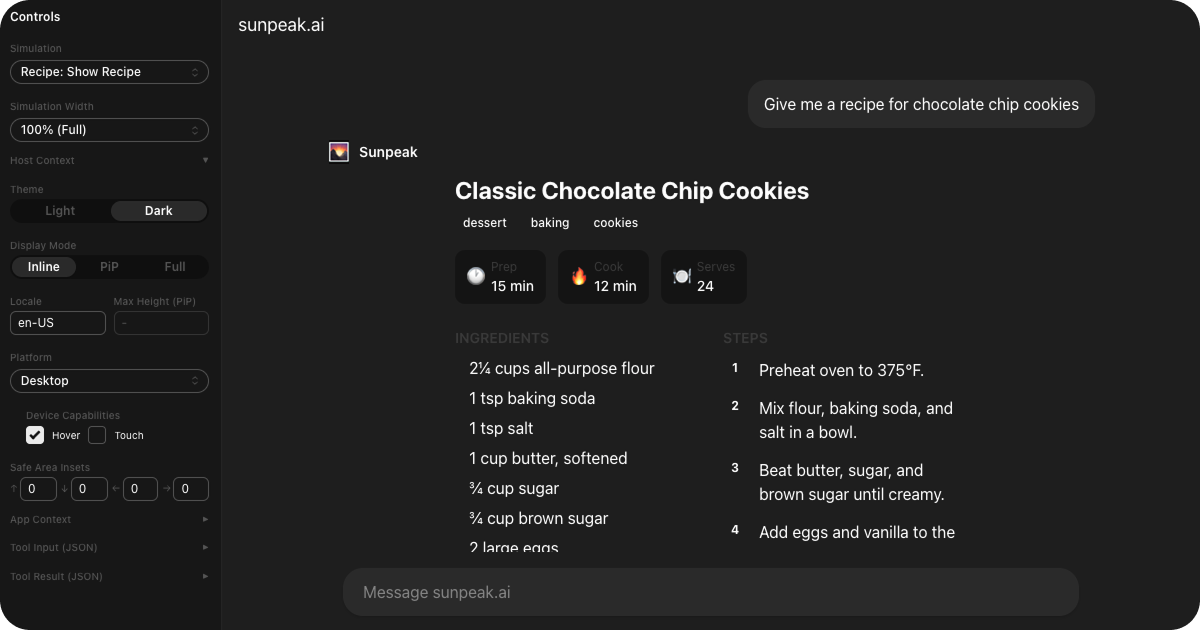
An MCP App running in sunpeak's multi-host inspector.
TL;DR: Scaffold a project with npx sunpeak new, build a React resource, write a typed tool with outputSchema, add a simulation file, and run the multi-host inspector with pnpm dev. You get a working MCP App on localhost in a few minutes, with no paid host account required for local development. Then add automated tests that cover the server contract and the rendered UI in ChatGPT and Claude-style runtimes.
An MCP App is a web application that renders inside AI hosts like ChatGPT and Claude. When the AI model calls a tool, instead of returning plain text, your app renders the result as interactive UI: cards, charts, forms, maps, whatever you build with React.
The official MCP Apps docs describe the current portable contract: a tool declares a ui:// resource, the host renders that resource in a sandboxed iframe, and the iframe talks to the host over ui/* JSON-RPC messages through postMessage. OpenAI’s current MCP Apps compatibility guide recommends the same direction for ChatGPT Apps: use standard MCP Apps keys and bridge methods by default, then add window.openai only for ChatGPT-only features.
This tutorial keeps the example small on purpose. You will build a contact card app from scratch, test it across local ChatGPT and Claude runtimes, and write automated tests that catch the two bugs first-time MCP App builders usually miss: a resource that renders only in one host and a tool result that no longer matches the UI’s data contract.
Prerequisites
You need Node.js 20 or later and pnpm. npm or yarn work too, but this tutorial uses pnpm because that is what the scaffolded project expects. You do not need a ChatGPT or Claude account for the local loop. sunpeak’s local inspector handles rendering, tool fixtures, host switching, display modes, and viewport testing during development.
Step 1: Create a New Project
Scaffold a project:
npx sunpeak newThe CLI asks you to name your project and pick which starter resources to include. For this tutorial, the selection does not matter because we are building a new resource from scratch. sunpeak creates the project directory, installs dependencies, and sets up TypeScript, React, Tailwind CSS, simulation files, Vitest, Playwright, and the local inspector.
cd into your new project directory. You should see:
src/resources/where your app UI lives (React components)src/tools/where your server-side tool handlers live (TypeScript)tests/simulations/where mock data lives (JSON)tests/e2e/where E2E tests go (Playwright)
Before you write code, notice the split. MCP App UI is not a normal client app that calls your private API directly. The model calls a tool, the tool returns data, and the host gives that data to your resource. Keeping that boundary clear is what makes the same app testable in the inspector and portable across hosts.
Step 2: Write Your First Resource
A Resource is a React component that renders tool data from the AI host. Each resource has two parts: a config object that describes it to the host, and a React component that renders the UI.
sunpeak auto-discovers resources by directory convention. Any file at src/resources/{name}/{name}.tsx becomes a resource. Create the file src/resources/contact/contact.tsx:
import { useToolData, SafeArea } from 'sunpeak';
import type { ResourceConfig } from 'sunpeak';

export const resource: ResourceConfig = {
  title: 'Contact',
  description: 'Display a contact card',
};

interface ContactData {
  name: string;
  role: string;
  company: string;
  email: string;
  phone: string;
  location: string;
}

export function ContactResource() {
  const { output, isLoading, isError, isCancelled } = useToolData<unknown, ContactData>();

  if (isLoading) {
    return <SafeArea className="p-6 font-sans">Loading contact...</SafeArea>;
  }

  if (isCancelled) {
    return <SafeArea className="p-6 font-sans">Contact lookup was cancelled.</SafeArea>;
  }

  if (isError || !output) {
    return <SafeArea className="p-6 font-sans">Unable to load this contact.</SafeArea>;
  }

  return (
    <SafeArea className="p-6 font-sans max-w-sm mx-auto">
      <div className="text-center mb-4">
        <div className="w-16 h-16 rounded-full bg-blue-100 text-blue-600 flex items-center justify-center text-2xl font-bold mx-auto mb-3">
          {output.name.charAt(0)}
        </div>
        <h1 className="text-xl font-bold">{output.name}</h1>
        <p className="text-sm text-gray-500">{output.role} at {output.company}</p>
      </div>

      <div className="space-y-3 text-sm">
        <div className="flex items-center gap-3 px-3 py-2 bg-gray-50 rounded-lg">
          <span className="text-gray-400">@</span>
          <span>{output.email}</span>
        </div>
        <div className="flex items-center gap-3 px-3 py-2 bg-gray-50 rounded-lg">
          <span className="text-gray-400">#</span>
          <span>{output.phone}</span>
        </div>
        <div className="flex items-center gap-3 px-3 py-2 bg-gray-50 rounded-lg">
          <span className="text-gray-400">~</span>
          <span>{output.location}</span>
        </div>
      </div>
    </SafeArea>
  );
}
Here’s what each piece does:
resourcetells the AI host the name and purpose of your UI. See the resource docs for all config options.useToolDatais a React hook that gives your component the data the AI model sent. The generic types<unknown, ContactData>mean we do not care about the tool input here, but we expect the output to match ourContactDatashape.SafeAreawraps your content with proper insets so it renders correctly across display modes (inline, picture-in-picture, and fullscreen).- The loading, cancelled, and error branches keep the iframe useful when the tool is still running, the user stops it, or the host returns an error. That is worth adding even in the first tutorial because hosts do not all present tool lifecycle states in the same way.
The rest is standard React with Tailwind classes. Nothing framework-specific about the UI itself.
Step 3: Write the Tool
A resource renders the UI. A Tool triggers it. When the AI model decides to call your tool, the tool handler runs on your MCP server, returns structured data, and the host renders your resource with that data.
sunpeak auto-discovers tools from src/tools/*.ts. Create src/tools/show-contact.ts:
import { z } from 'zod';
import type { AppToolConfig, ToolHandlerExtra } from 'sunpeak/mcp';

export const tool: AppToolConfig = {
  resource: 'contact',
  title: 'Show Contact',
  description: 'Look up a contact and display their card',
  annotations: { readOnlyHint: true },
};

export const schema = {
  name: z.string().describe('Contact name to look up'),
};

export const outputSchema = {
  name: z.string(),
  role: z.string(),
  company: z.string(),
  email: z.string().email(),
  phone: z.string(),
  location: z.string(),
};

type Args = z.infer<z.ZodObject<typeof schema>>;

export default async function (args: Args, _extra: ToolHandlerExtra) {
  // In production, query your contacts API or database using args.name
  return {
    content: [{ type: 'text', text: `Found contact details for ${args.name}.` }],
    structuredContent: {
      name: 'Alice Zhang',
      role: 'Engineering Lead',
      company: 'Acme Corp',
      email: 'alice@acme.dev',
      phone: '+1 (555) 234-5678',
      location: 'San Francisco, CA',
    },
  };
}
Four exports, each with a specific job:
toollinks this tool to thecontactresource and describes it to the AI model. Theresourcefield is the directory name of your resource (src/resources/contact/). Theannotationsfield tells the host about side effects. This tool is read-only, so it should not create, update, delete, send, or publish data. See the tool docs for all config options.schemadefines the tool’s input parameters using Zod. The AI model reads the field descriptions to decide what arguments to pass. Clear descriptions here improve tool-calling accuracy across GPT, Claude, Gemini, and other models. You can run evals to measure that.outputSchemadescribes thestructuredContentpayload. OpenAI’s Apps SDK reference now recommends declaringoutputSchemafor tools that returnstructuredContent, and the same habit helps every MCP App because the server, host, model, UI, and tests share one result contract.- The default export is the handler that runs when the model calls the tool. It returns concise model-readable
contentplus typedstructuredContentmatching the shape your resource component expects. In production, this handler would query a real contacts API or database.
Keep private UI-only values out of structuredContent. If a host supports tool-result _meta, that is the better place for pagination cursors, internal IDs, signed asset URLs, or other values the component needs but the model should not reason about. For the deeper split, see MCP App tool results.
Step 4: Add a Simulation File
The inspector needs mock data to render your resource without a live AI host connection. A simulation file defines what the user said, what tool the model called, and what data came back.
Create tests/simulations/show-contact.json:
{
  "tool": "show-contact",
  "userMessage": "Show me Alice's contact info",
  "toolInput": {
    "name": "Alice Zhang"
  },
  "toolResult": {
    "content": [
      {
        "type": "text",
        "text": "Found contact details for Alice Zhang."
      }
    ],
    "structuredContent": {
      "name": "Alice Zhang",
      "role": "Engineering Lead",
      "company": "Acme Corp",
      "email": "alice@acme.dev",
      "phone": "+1 (555) 234-5678",
      "location": "San Francisco, CA"
    }
  }
}
The tool field is the filename of your tool without the .ts extension. The toolResult.content array is the concise model-readable summary. The toolResult.structuredContent object is what useToolData returns as output in your component, and it should match the outputSchema you exported from the tool.
You can create multiple simulation files for the same tool to test different scenarios. A show-contact-not-found.json could test an empty state, show-contact-long-name.json could test overflow, and show-contact-error.json could test the error branch. Each file becomes a selectable case in the inspector dropdown and a reusable fixture for automated tests.
Step 5: Run the Inspector
Start the development server:
pnpm devThis starts the sunpeak Inspector at http://localhost:3000 and your MCP server at http://localhost:8000. Open the inspector in your browser. You should see your contact card rendered inside a chat conversation. The user message “Show me Alice’s contact info” appears in the chat, and your ContactResource component renders the structured card below it, like this:
Test across hosts
The inspector ships with ChatGPT and Claude host runtimes built in. Use the Host dropdown in the inspector sidebar to switch between them. Your resource should render on both because it is built against the MCP Apps standard, not a host-specific API. This means you are building a ChatGPT App and a Claude Connector from the same core code.
Try these other controls while you are in the inspector:
- Host: switch between ChatGPT and Claude runtimes.
- Display Mode: toggle between inline (inside the chat), picture-in-picture, and fullscreen. The display mode reference covers each mode.
- Theme: switch between light and dark mode.
- Device: test mobile and desktop viewports.
Changes to your component hot reload instantly in the ChatGPT runtime. The Claude runtime rebuilds and shows a refresh notification automatically. That local loop is the point of starting with the inspector: you can check the same fixture across host chrome, display modes, themes, and viewport sizes before you spend time in a live account.
How It Works
The data flow in an MCP App is the same regardless of which host runs it:
- The user asks the AI something (“Show me Alice’s contact info”).
- The model decides to call a tool (
show-contact). Your MCP server validates the input schema, executes the handler, and returnscontentplusstructuredContent. - The tool descriptor points at your UI resource. In the portable MCP Apps contract, that link is
_meta.ui.resourceUri, and sunpeak wires it from theresource: 'contact'tool config. - The host fetches the
ui://resource, renders it inside a sandboxed iframe, and sends tool data to the iframe through the app bridge. - Your component receives the typed result through
useToolDataand renders it as UI.
Your resource is pure UI. It does not call private APIs or run server logic. The model chooses the tool, your tool handler provides the data, and your resource handles the presentation. This separation is why MCP Apps are portable: the same component can run in any host that supports the MCP Apps extension, while host-specific features stay optional.
During development, the simulation file stands in for your backend and the AI host. In production, real tool calls replace the mock data, and your component renders identically because the data shape is the same. For a deeper look at the architecture decisions behind cross-host apps, see How to Build an MCP App.
Add Automated Tests
sunpeak projects come with a full testing framework preconfigured: Vitest for unit tests and Playwright for E2E tests that run against the inspector.
Unit tests
Test your resource component with @testing-library/react. Create src/resources/contact/contact.test.tsx:
import { describe, it, expect, vi } from 'vitest';
import { render, screen } from '@testing-library/react';
import { ContactResource } from './contact';

vi.mock('sunpeak', () => ({
  useToolData: () => ({
    output: {
      name: 'Alice Zhang',
      role: 'Engineering Lead',
      company: 'Acme Corp',
      email: 'alice@acme.dev',
      phone: '+1 (555) 234-5678',
      location: 'San Francisco, CA',
    },
    input: null,
    inputPartial: null,
    isError: false,
    isLoading: false,
    isCancelled: false,
    cancelReason: null,
  }),
  useHostContext: () => null,
  useDisplayMode: () => 'inline',
  useApp: () => null,
  SafeArea: ({ children, ...props }: any) => <div {...props}>{children}</div>,
}));

describe('ContactResource', () => {
  it('renders the contact name and details', () => {
    render(<ContactResource />);
    expect(screen.getByText('Alice Zhang')).toBeInTheDocument();
    expect(screen.getByText('alice@acme.dev')).toBeInTheDocument();
    expect(screen.getByText('Engineering Lead at Acme Corp')).toBeInTheDocument();
  });
});
Run it:
pnpm test:unitThe mock replaces sunpeak’s hooks with controlled data so you test the component in isolation. For a detailed breakdown of mocking patterns, see Unit Testing MCP Apps.
Tool contract test
Test the server-side result before you render it. Create src/tools/show-contact.test.ts:
import { describe, it, expect } from 'vitest';
import { z } from 'zod';
import showContact, { outputSchema } from './show-contact';
import type { ToolHandlerExtra } from 'sunpeak/mcp';

const contactOutputSchema = z.object(outputSchema);

describe('show-contact tool', () => {
  it('returns structuredContent that matches outputSchema', async () => {
    const result = await showContact(
      { name: 'Alice Zhang' },
      {} as ToolHandlerExtra
    );

    expect(contactOutputSchema.safeParse(result.structuredContent).success).toBe(true);
    expect(result.content?.[0]?.type).toBe('text');
  });
});
This catches a common contract bug: the React component expects email, the tool starts returning emailAddress, and the iframe breaks even though TypeScript looked fine inside one file. The outputSchema guide covers stricter patterns for bigger apps.
End-to-end tests
Test your resource across both hosts with Playwright and the inspector fixture. Create tests/e2e/contact.spec.ts:
import { test, expect } from 'sunpeak/test';

test('should render contact card', async ({ inspector }) => {
  const result = await inspector.renderTool('show-contact', { name: 'Alice Zhang' });
  const app = result.app();
  await expect(app.locator('text=Alice Zhang')).toBeVisible();
  await expect(app.locator('text=alice@acme.dev')).toBeVisible();
});
Run it:
pnpm test:e2eThis runs your contact card in both the ChatGPT and Claude inspector runtimes and validates that it renders correctly in each. The Playwright config includes both hosts as separate projects, so you get cross-host coverage automatically. You can also run pnpm test to execute both unit and E2E tests together.
For more patterns (display mode testing, theme testing, visual regression, interaction testing), see the complete guide to testing MCP Apps. To add these tests to a CI pipeline, see MCP App CI/CD with GitHub Actions.
Build and Deploy
When you are ready to ship:
pnpm build
pnpm start
pnpm build compiles each resource into a self-contained HTML bundle and each tool into an optimized Node.js module. pnpm start launches a production MCP server that exposes your tools and resources at an MCP endpoint.
Connect any MCP Apps-compatible host to your server’s /mcp endpoint and your app is live. For ChatGPT, OpenAI now describes public app distribution through plugin submission, while the app itself can still use the same MCP server and portable UI resource. For Claude, connect the deployed remote MCP server as a connector. See the deployment guide for hosting options such as Cloudflare Workers, Vercel, Railway, or any Node.js host.
Before you submit or share the app, run the same states in the local inspector, then add a smaller live-host smoke test for the deployed URL. Local tests catch contract and rendering regressions. Live tests catch account, auth, review, and host-specific behavior.
Next Steps
You now have a working MCP App with a resource, tool, simulation data, and automated tests. From here you can:
- Add interactive state with useAppState so users can interact with your UI and persist state across messages.
- Handle loading, error, and cancelled states with the full
useToolDatareturn values. - Validate outputSchema and structuredContent before host rendering.
- Apply TDD patterns to build new features with test coverage from the start.
- Style your app with host CSS variables for native look and feel across hosts.
- Add resource metadata and CSP before production submission.
- Build a more complex app by looking at real-world MCP App architecture.
- Already have a web app? Migrate it to an MCP App in a few steps.
Get Started
npx sunpeak newFurther Reading
- What Is an MCP App? - architecture, hosts, and how they work
- How to Build an MCP App - cross-host architecture and design decisions
- MCP Concepts Explained - Tools, Resources, and how MCP Apps use them
- Complete guide to testing MCP Apps - unit, E2E, visual regression, and evals
- E2E testing MCP Apps - the inspector Playwright fixture
- Unit testing MCP Apps - Vitest patterns for resources and tool handlers
- MCP App error handling - loading, error, and cancelled states
- How to deploy an MCP App - hosting options and connecting hosts
- MCP App framework
- MCP App testing framework
- MCP App outputSchema - validate structuredContent before hosts see it
- MCP Apps overview - official protocol documentation
- MCP Apps compatibility in ChatGPT - OpenAI Apps SDK
Frequently Asked Questions
What is the fastest way to create an MCP App in 2026?
Run "npx sunpeak new" to scaffold a project with TypeScript, React, Tailwind, Vitest, Playwright, simulation files, and the local inspector preconfigured. Then run "pnpm dev" to launch the inspector with ChatGPT and Claude host runtimes. You can have a working MCP App running in a couple of minutes without paid host accounts or AI credits.
Do I need a ChatGPT or Claude account to build an MCP App?
No. sunpeak includes a local inspector that replicates ChatGPT and Claude-style MCP App runtimes at localhost:3000. You can build, test, and iterate locally without host accounts, API keys, or credits. Use real host accounts later for live verification, distribution review, and production smoke tests.
What is the difference between an MCP App resource and a tool?
A resource is the HTML UI that renders inside the host iframe. A tool is a server-side function the model calls to produce data and, for UI-backed tools, point at that resource. The tool handler returns content for the model, structuredContent for typed UI data, and optional _meta for component-only details. The resource reads the result through hooks such as useToolData.
Should my MCP App tool declare outputSchema?
Yes when the tool returns structuredContent. outputSchema describes the JSON object the host, model, resource, and tests should expect. It catches drift between server data and UI rendering before a host iframe fails. In sunpeak, export outputSchema next to the tool input schema and test that returned structuredContent matches it.
How do I test an MCP App across ChatGPT and Claude locally?
sunpeak's inspector includes ChatGPT and Claude host runtimes. Use the host dropdown to switch between them. For automated testing, use the inspector fixture from sunpeak/test with Playwright to render a tool result and assert against the iframe. Tests can run across hosts, themes, display modes, and viewports before you use a live host.
What is a simulation file in sunpeak?
A simulation file is a JSON file in tests/simulations/ that contains mock tool data for local development. It defines the tool name, user message, input arguments, and tool result. The inspector loads these files so you can develop and test success, empty, loading, error, cancelled, long-content, and narrow-viewport states without connecting to a real AI host.
Can one MCP App codebase run in ChatGPT and Claude?
Yes, if you keep the shared path on the MCP Apps standard. Use standard resource metadata, structured tool results, the ui/* bridge, and portable hooks first. Add ChatGPT-specific or Claude-specific behavior only behind feature checks or host-specific imports so the base resource keeps working across compatible hosts.
What testing options does sunpeak provide for MCP Apps?
sunpeak includes unit tests with Vitest, E2E tests with Playwright and the inspector fixture, visual regression tests, MCP protocol integration tests, live host tests, and multi-model evals for tool-calling quality. The fast local and CI tests run without paid host accounts or AI credits. Live tests and evals are optional release checks.
