MCP App Error Handling: Loading, Error, and Cancelled States (July 2026)
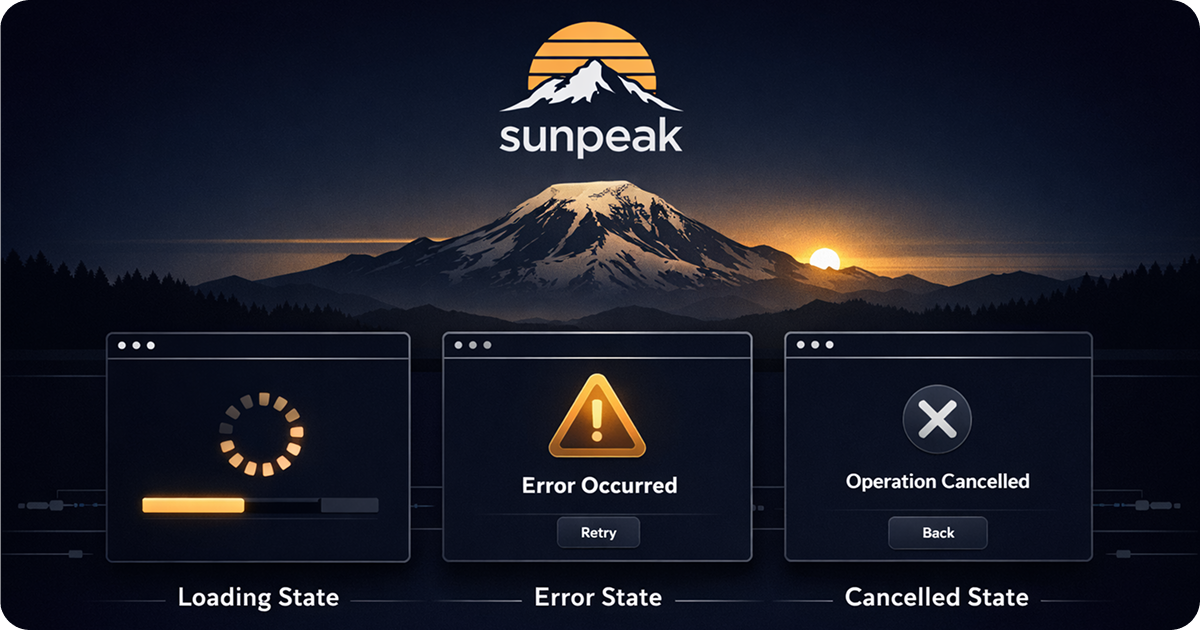
Handle every tool state in MCP Apps: loading, success, error, and cancelled.
TL;DR: Treat MCP App rendering as a state machine, not as “output exists or it does not.” Handle loading, partial input, tool execution errors, cancelled calls, empty results, and success explicitly. Return isError: true for recoverable tool failures, keep model-safe details in content or structuredContent, keep private debug data out of model-visible fields, and test every branch with unit tests plus sunpeak inspector simulations.
Most MCP App examples start with this shape:
const { output } = useToolData<unknown, ContactData>();

if (!output) return null;

return <ContactCard contact={output} />;
That is fine for a hello-world resource. It is too brittle for production. output can be absent because the tool is still running, the user stopped the model, the tool failed, the tool returned an empty result, or the host has not delivered the first result notification yet.
The right fix is not a bigger null check. The right fix is a small state machine.
The Protocol Shape
MCP Apps extend MCP by letting tools point at UI resources. A host calls a tool, fetches the linked resource, renders it in a sandboxed iframe, and passes tool state to the iframe over the app bridge.
For error handling, four bridge notifications matter:
ui/notifications/tool-inputsends complete tool arguments.ui/notifications/tool-input-partialstreams partial arguments while the model is still forming the call.ui/notifications/tool-resultsends toolcontent, optionalstructuredContent, optional_meta, and optionalisError.ui/notifications/tool-cancelledtells the view that execution stopped before a final result.
The MCP Apps tool-result notification uses the normal MCP result shape. That matters because your resource is not the only audience. The model may read content and structuredContent, while the resource may also need UI-only fields.
If you are building for ChatGPT, OpenAI’s current guidance is to prefer the shared MCP Apps fields and methods when they cover the job. For example, use _meta.ui.resourceUri to link a tool to a UI resource and ui/notifications/tool-result to receive results. ChatGPT compatibility aliases such as _meta["openai/outputTemplate"] and window.openai.toolOutput can still matter for existing integrations, but new portable UI should start from the shared MCP Apps contract.
Protocol Errors Versus Tool Execution Errors
The MCP tools spec separates two failure types:
- Protocol errors: the JSON-RPC request failed. Examples include unknown tools, malformed requests, and server-level failures.
- Tool execution errors: the tool ran, but the requested work failed. Examples include invalid input, expired auth, a missing record, a rate limit, or an upstream API outage.
For MCP Apps, tool execution errors are the branch your resource usually needs to render. The server returns a normal tool result with isError: true, and the host forwards that result through ui/notifications/tool-result.
That design gives the model a chance to recover. A validation error can tell the model which date format to retry. An expired-auth error can tell the user to reconnect. A missing-record error can suggest a new search.
Do not hide this behind a blank iframe.
What useToolData Gives You
sunpeak’s useToolData hook wraps the tool lifecycle into one object:
const {
  input,
  inputPartial,
  output,
  isLoading,
  isError,
  isCancelled,
  cancelReason,
} = useToolData<ContactInput, ContactOutput>();
Use the fields this way:
inputPartial: what the model has streamed so far. Good for “Looking up Ada…” during loading.input: the complete tool arguments. Good for labels, retries, and context.output: the tool result’sstructuredContent, when available.isLoading: true until the initial tool call resolves or is cancelled.isError: true when the tool result saysisError: true.isCancelled: true when the host sendstool-cancelled.cancelReason: optional cancellation detail for logs or analytics.
Keep the render order boring and explicit:
if (isLoading) return <LoadingState inputPartial={inputPartial} />;
if (isCancelled) return <StoppedState />;
if (isError) return <ErrorState input={input} output={output} />;
if (!output) return <EmptyState />;
return <SuccessState output={output} />;
I put isCancelled before isError because cancellation is not an error. If your host can deliver an error result after cancellation for a particular flow, choose the order that matches your product, but make that choice deliberate.
Loading State
Hosts can render the resource before the final tool result arrives. The first thing users see may be your loading branch.
A good loading state does three jobs:
- It matches the shape of the final content so the layout does not jump.
- It uses host-aware colors so it works in light and dark mode.
- It uses
inputPartialwhen the arguments are useful to the user.
import { SafeArea, useToolData } from 'sunpeak';

interface ContactInput {
  name?: string;
  contactId?: string;
}

interface ContactOutput {
  status: 'ok';
  contact: {
    name: string;
    email: string;
    company: string;
  };
}

function LoadingState({ inputPartial }: { inputPartial: ContactInput | null }) {
  return (
    <SafeArea style={{ padding: '1rem', fontFamily: 'var(--font-sans)' }}>
      {inputPartial?.name ? (
        <p style={{ margin: 0, color: 'var(--color-text-secondary)' }}>
          Looking up {inputPartial.name}...
        </p>
      ) : (
        <div style={{ display: 'grid', gap: '0.5rem' }}>
          <div style={skeleton('66%', '1.25rem')} />
          <div style={skeleton('48%', '1rem')} />
          <div style={skeleton('36%', '1rem')} />
        </div>
      )}
    </SafeArea>
  );
}

function skeleton(width: string, height: string): React.CSSProperties {
  return {
    width,
    height,
    borderRadius: 'var(--border-radius-sm)',
    background: 'var(--color-background-secondary)',
  };
}
Partial input is useful for names, queries, filters, and human-readable IDs. It is less useful for opaque tokens or internal IDs. In those cases, use a skeleton or progress label instead of exposing implementation detail.
Error State
An MCP tool execution error should be both model-readable and UI-readable.
For the model, return concise content that explains what happened and what can happen next. For the resource, return a typed structuredContent error shape if the UI needs specific fields.
type ContactResult =
  | {
      status: 'ok';
      contact: {
        name: string;
        email: string;
        company: string;
      };
    }
  | {
      status: 'error';
      code: 'not_found' | 'auth_expired' | 'upstream_unavailable';
      message: string;
      retryable: boolean;
    };

export async function getContact(args: { id: string }) {
  const contact = await contacts.findById(args.id);

  if (!contact) {
    return {
      isError: true,
      content: [
        {
          type: 'text',
          text: 'No contact was found for that ID. Ask the user for a different contact or search by name.',
        },
      ],
      structuredContent: {
        status: 'error',
        code: 'not_found',
        message: 'No contact found.',
        retryable: false,
      } satisfies ContactResult,
    };
  }

  return {
    content: [{ type: 'text', text: `Found ${contact.name}.` }],
    structuredContent: {
      status: 'ok',
      contact,
    } satisfies ContactResult,
  };
}
Then render the error branch directly:
function ErrorState({ output }: { output: ContactResult | null }) {
  const message =
    output?.status === 'error'
      ? output.message
      : 'Something went wrong loading this contact.';

  return (
    <SafeArea style={{ padding: '1rem', fontFamily: 'var(--font-sans)' }}>
      <div
        role="alert"
        style={{
          padding: '0.75rem 1rem',
          borderRadius: 'var(--border-radius-md)',
          background: 'var(--color-background-danger)',
          border: '1px solid var(--color-border-danger)',
          color: 'var(--color-text-danger)',
        }}
      >
        {message}
      </div>
    </SafeArea>
  );
}
Keep sensitive values out of content and structuredContent. Do not pass stack traces, raw provider errors, access tokens, signed URLs, or internal account IDs to fields the model may read. If your UI needs private display-only data, put it in _meta only when your target host supports that path, or fetch it through an app-only tool after the resource loads.
The model needs enough to recover. The user needs enough to understand. Neither needs your raw exception.
Cancelled State
MCP Apps cancellation means the host stopped execution before a final result. The reason may be user action, timeout, sampling failure, or a host safety decision.
Render cancellation as neutral stopped work:
function StoppedState() {
  return (
    <SafeArea
      style={{
        padding: '1rem',
        fontFamily: 'var(--font-sans)',
        color: 'var(--color-text-secondary)',
      }}
    >
      Stopped.
    </SafeArea>
  );
}
Do not show “failed” just because the resource has no output. If the user clicked stop, a red error makes the app look broken when it did exactly what the user asked.
Cancellation can also mean more than one thing in long-running work. A host-side tool-cancelled notification may only stop the initial request. If your backend already queued a report, import, or sync job, you still need a server-side cancellation path. The long-running MCP App tools guide covers that job model.
Empty State
Empty is not loading, error, or cancelled. It means the tool completed successfully but found no rows, no matches, or no current item.
Model the empty case explicitly in structuredContent:
type SearchResult =
  | { status: 'ok'; items: Item[] }
  | { status: 'empty'; query: string; suggestion: string }
  | { status: 'error'; message: string; retryable: boolean };
Then render it explicitly:
if (output?.status === 'empty') {
  return (
    <SafeArea style={{ padding: '1rem', fontFamily: 'var(--font-sans)' }}>
      <p style={{ margin: 0 }}>No results for "{output.query}".</p>
      <p style={{ margin: '0.25rem 0 0', color: 'var(--color-text-secondary)' }}>
        {output.suggestion}
      </p>
    </SafeArea>
  );
}
This helps both the user and the model. The user sees a real state. The model can suggest the next search instead of guessing why the iframe is blank.
A Complete Component
Here is the same contact resource as one component:
import { SafeArea, useToolData } from 'sunpeak';

type ContactInput = {
  id?: string;
  name?: string;
};

type ContactResult =
  | {
      status: 'ok';
      contact: {
        name: string;
        email: string;
        company: string;
      };
    }
  | {
      status: 'empty';
      query: string;
    }
  | {
      status: 'error';
      message: string;
      retryable: boolean;
    };

export function ContactResource() {
  const { inputPartial, output, isLoading, isError, isCancelled } =
    useToolData<ContactInput, ContactResult>();

  if (isLoading) {
    return <LoadingState inputPartial={inputPartial} />;
  }

  if (isCancelled) {
    return <StoppedState />;
  }

  if (isError) {
    return <ErrorState output={output} />;
  }

  if (!output || output.status === 'empty') {
    return <EmptyContactState query={output?.status === 'empty' ? output.query : undefined} />;
  }

  return (
    <SafeArea
      style={{
        padding: '1rem',
        fontFamily: 'var(--font-sans)',
        color: 'var(--color-text-primary)',
      }}
    >
      <article
        style={{
          padding: '1rem',
          border: '1px solid var(--color-border-primary)',
          borderRadius: 'var(--border-radius-md)',
          background: 'var(--color-background-secondary)',
        }}
      >
        <h2 style={{ margin: 0, fontSize: 'var(--text-md)' }}>{output.contact.name}</h2>
        <p style={{ margin: '0.25rem 0 0', color: 'var(--color-text-secondary)' }}>
          {output.contact.email}
        </p>
        <p style={{ margin: '0.25rem 0 0', color: 'var(--color-text-tertiary)' }}>
          {output.contact.company}
        </p>
      </article>
    </SafeArea>
  );
}
The important part is not the markup. It is the branch list. Loading, stopped, error, empty, and success each get their own state.
Testing Each State
Use unit tests for fast component coverage and sunpeak simulations for host-runtime coverage.
In a unit test, mock useToolData:
import { render, screen } from '@testing-library/react';
import { describe, expect, it, vi } from 'vitest';
import { ContactResource } from './contact';

const toolData = {
  input: null,
  inputPartial: null,
  output: null,
  isLoading: false,
  isError: false,
  isCancelled: false,
  cancelReason: null,
};

vi.mock('sunpeak', () => ({
  useToolData: vi.fn(() => toolData),
  SafeArea: ({ children }: { children: React.ReactNode }) => <div>{children}</div>,
}));

describe('ContactResource', () => {
  it('renders an error state', async () => {
    Object.assign(toolData, {
      isError: true,
      output: { status: 'error', message: 'No contact found.', retryable: false },
    });

    render(<ContactResource />);

    expect(screen.getByRole('alert')).toHaveTextContent('No contact found.');
  });
});
That test is cheap and catches branch regressions. Add separate tests for loading, cancelled, empty, and success.
For the inspector and Playwright, pin the state in a simulation:
{
  "tool": "get-contact",
  "userMessage": "Show me contact 999",
  "toolInput": { "id": "999" },
  "toolResult": {
    "isError": true,
    "content": [
      {
        "type": "text",
        "text": "No contact was found for that ID."
      }
    ],
    "structuredContent": {
      "status": "error",
      "message": "No contact found.",
      "retryable": false
    }
  }
}
The sunpeak dev server auto-discovers simulations from tests/simulations/*.json, then lets you pick them in the inspector. A Playwright test can load that simulation and assert against the iframe:
import { expect, test } from 'sunpeak/test';

test('contact resource renders the not-found error state', async ({ inspector }) => {
  const result = await inspector.renderTool('get-contact', {
    simulation: 'get-contact-error',
  });

  await expect(result.app().getByRole('alert')).toContainText('No contact found.');
});
Run the same pattern for:
- Initial loading with no input yet.
- Loading with
inputPartial. - Successful result with realistic data.
- Empty result.
- Tool execution error with
isError: true. - Host cancellation.
- Dark theme and narrow viewport variants.
These states are tedious to reproduce manually in ChatGPT or Claude. They are exactly the states you want in CI.
A Practical Checklist
Before you ship an MCP App resource, check this list:
- The server distinguishes protocol errors from tool execution errors.
- Tool execution errors return
isError: trueplus model-safecontent. - Error UI renders before success UI tries to read output.
- Cancelled UI uses neutral copy and does not look like a failure.
- Empty UI is different from loading UI.
structuredContentmatchesoutputSchemawhen you define one.- Private debug data stays out of model-visible fields.
- Simulations cover loading, partial input, success, empty, error, and cancelled states.
- Unit tests mock
useToolDatafor each render branch.
sunpeak helps with the testing part because the inspector can replay tool input, tool results, host theme, display mode, viewport, and simulation data without a paid host account or live AI call. That is useful here because error handling is mostly about states that rarely happen while you are manually clicking through the happy path.
Start with the boring state machine. Then make each state look good.
Get Started
npx sunpeak newFurther Reading
- MCP App lifecycle - how initialization, input, results, cancellation, and teardown fit together.
- MCP App tool results - content, structuredContent, and _meta without leaking private UI data.
- Long-running MCP App tools - progress, tasks, cancellation, and retry patterns.
- Unit testing MCP Apps - mock useToolData and test every resource branch.
- E2E testing MCP Apps - run deterministic simulations in the sunpeak inspector.
- useToolData hook reference - current sunpeak API for tool input and output state.
- MCP Apps tool-result notification - official bridge shape for result data.
- MCP tools error handling - protocol errors versus tool execution errors.
- OpenAI ChatGPT UI guidance - prefer shared MCP Apps fields before compatibility aliases.
Frequently Asked Questions
How do I handle errors in an MCP App resource?
Handle errors as a first-class render branch. In MCP Apps, the host can deliver ui/notifications/tool-result with isError: true when a tool execution error occurs. In sunpeak, useToolData exposes isError, isLoading, isCancelled, cancelReason, input, inputPartial, and output. Render a clear error state before reading output, and test it with a simulation fixture or a mocked useToolData value.
What is the difference between an MCP protocol error and a tool execution error?
A protocol error means the JSON-RPC request itself failed, such as an unknown tool, malformed request, or server error. A tool execution error means the tool ran but could not complete the user task, such as validation failure, expired auth, unavailable upstream API, or missing data. The MCP tools specification reports tool execution errors in normal tool results with isError: true, so the model can often recover.
What MCP Apps notifications carry tool state to a resource?
The MCP Apps bridge can send ui/notifications/tool-input for complete arguments, ui/notifications/tool-input-partial for streaming arguments, ui/notifications/tool-result for content, structuredContent, and isError, and ui/notifications/tool-cancelled when execution stops. The same app may also receive host context and display mode notifications, but those belong to host-layout state rather than tool-result state.
What does useToolData return in sunpeak?
useToolData returns input, inputPartial, output, isError, isLoading, isCancelled, and cancelReason. output is the structuredContent from the tool result when available. input contains complete tool arguments, inputPartial contains streaming partial arguments, isLoading stays true while the initial tool is still executing, and isCancelled becomes true when the host or user cancels the tool call.
Should an MCP App show the same UI for failed and cancelled states?
No. A failed tool means the app could not complete the requested work, so the UI should explain the problem and give a retry path. A cancelled tool usually means the user, host, timeout, or safety layer stopped execution, so the UI should use neutral language. Treat cancellation as stopped work, not as a red error.
What should a tool return when an operation fails?
Return isError: true with concise model-readable content that explains the failure and possible next step. If the resource also needs a typed error view, return a safe structuredContent shape such as { status: "error", code, message, retryable }. Keep stack traces, tokens, raw provider errors, and private debugging data out of content and structuredContent.
How do I test MCP App loading and error states with sunpeak?
Use both unit tests and inspector simulations. Unit tests can mock useToolData and assert the resource renders loading, error, cancelled, empty, and success branches. E2E tests can load simulation JSON files in the sunpeak inspector, including fixtures with isError: true, empty structuredContent, cancelled states, slow-loading states, and partial input.
Can I use the MCP Apps protocol directly without sunpeak?
Yes. You can subscribe to the MCP Apps bridge directly through the @modelcontextprotocol/ext-apps App class and its tool event callbacks. sunpeak wraps the same lifecycle into React hooks and an inspector so you can write less bridge code and test the same states locally and in CI.
