

Quickstart
Scaffold tests for any MCP server. No sunpeak project required:What it does
MCP Apps render inside host iframes with host-specific themes, display modes, and capabilities. Standard browser testing can’t replicate this because the runtime environment only exists inside ChatGPT and Claude. sunpeak replicates those runtimes so you can run CI-friendly tests without host accounts or API credits. Five levels of automated testing:- Unit tests — Vitest with happy-dom for component and hook logic. Exclusively for the sunpeak MCP App framework. For testing-only use cases, your unit tests will already be in the same language as your server.
- E2E tests — Playwright specs against replicated ChatGPT and Claude runtimes via the inspector. Test every combination of host, theme, display mode, and device type.
- Visual regression tests — Playwright specs against saved images of your rendered UI via the inspector.
- Live tests — Playwright specs against real ChatGPT. sunpeak handles auth, message sending, and iframe access.
- Evals — Multi-model tool calling tests (GPT-4o, mini, Claude, Gemini, etc.). Each eval runs N times per model to measure how reliably each model can use your tools.
--eval and --live are not included in the default sunpeak test run because they require API keys and cost money. You must opt in explicitly.E2E Testing
E2E tests are Playwright specs intests/e2e/*.spec.ts. The dev server starts automatically — Playwright launches it before running tests. Tests run against both ChatGPT and Claude hosts via Playwright projects.
- pnpm
- npm
- yarn
Writing E2E Tests
Importtest and expect from sunpeak/test. The mcp fixture provides protocol-level methods, and the inspector fixture handles rendering, double-iframe traversal, and host selection:
URL Parameters
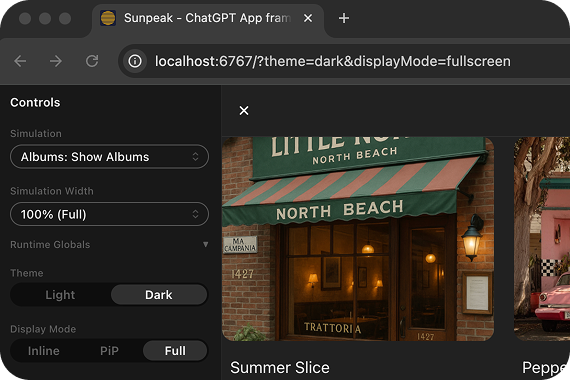
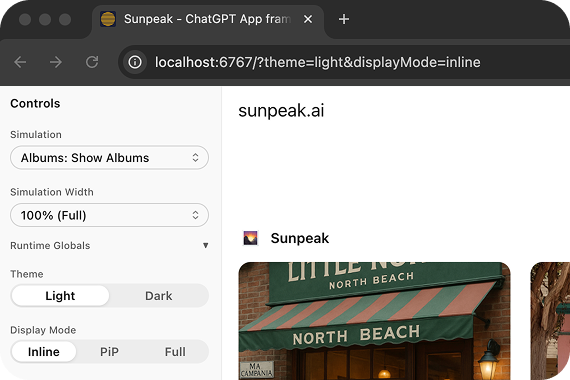 The
The inspector.renderTool() method accepts options for theme, displayMode, sidebar, and timeout. It hides inspector sidebars by default so app e2e tests do not depend on inspector layout. For advanced URL parameters, see the Inspector API Reference.
The config is a one-liner:
Testing Backend-Only Tools
If your resource calls backend tools viauseCallServerTool, define mock responses using the serverTools field in the simulation JSON. The inspector resolves these mocks based on the tool call arguments:
serverTools field supports both simple (single result) and conditional (when/result array) forms. See Simulation API Reference for details.
Example E2E Test Structure
A typical e2e test file tests a resource across different modes. Each test runs automatically against both ChatGPT and Claude hosts:Visual Regression Testing
Visual regression tests capture screenshots and compare them against saved baselines. This catches unintended visual changes across themes, display modes, and hosts. Screenshot comparisons only run when you pass--visual. Without it, result.screenshot() calls are silently skipped, so you can include them in your regular e2e tests without affecting normal runs.
- pnpm
- npm
- yarn
result.screenshot() in any e2e test:
inspector.renderTool() hides the inspector sidebars, and screenshot() captures the app inside the double-iframe, so inspector UI changes do not break your app visual baselines. Pass a specific element locator to narrow the capture further:
Live Testing
Live tests validate your MCP Apps inside real ChatGPT — not the inspector. They open a browser, navigate to ChatGPT, send messages that trigger tool calls against your MCP server, and verify the rendered app using Playwright assertions. This catches issues that inspector tests can’t: real MCP connection behavior, actual LLM tool invocation, host-specific iframe rendering, and production resource loading.Prerequisites
- ChatGPT account with MCP/Apps support
- Tunnel tool — ngrok, Cloudflare Tunnel, or similar
- Browser session — Logged into chatgpt.com in Chrome, Arc, Brave, or Edge
One-Time Setup
- If Developer mode is not already enabled, click your user menu in the bottom-left corner and select Settings > Security and login > Developer mode
- Return to the ChatGPT homepage and click Plugins in the sidebar
- Open your app if it is already there, or select the + button to add it
- Make sure the app name matches your
package.jsonnameexactly. Live tests type/{appName} ...to invoke your app, and ChatGPT matches on this name. - If you are adding the app, enter your tunnel URL with the
/mcppath (e.g.,https://abc123.ngrok.io/mcp) and save it
Running Live Tests
- pnpm
- npm
- yarn
- Imports your ChatGPT session from your browser (Chrome, Arc, Brave, or Edge). Falls back to a manual login window if no session is found.
- Starts
sunpeak dev --prod-resourcesautomatically - Refreshes the MCP server connection from its plugin details (once in globalSetup, before all workers)
- Runs
tests/live/*.spec.tsfiles fully in parallel — each test gets its own chat window
Live tests always run with a visible browser window. chatgpt.com uses bot detection that blocks headless browsers.
Writing Live Tests
Importtest and expect from sunpeak/test/live to get a live fixture that handles auth, message sending, and iframe access automatically:
live fixture provides:
invoke(prompt)— starts a new chat, sends the prompt (with host-specific formatting like/{appName}for ChatGPT), waits for the app iframe, and returns aFrameLocatorstartNewChat()— opens a fresh conversation (for multi-step flows)sendMessage(text)— sends a message with host-appropriate formattingwaitForAppIframe()— waits for the MCP app iframe to render and returns aFrameLocatorsendRawMessage(text)— sends a message without any prefixsetColorScheme(scheme, appFrame?)— switches the host to'light'or'dark'theme; optionally pass an appFrameLocatorto wait for it to updatepage— raw PlaywrightPageobject for advanced assertions
chatgpt). When new hosts are supported, add them with a one-line change:
Troubleshooting
'Not logged into ChatGPT' error
'Not logged into ChatGPT' error
On first run, a browser window opens for you to log in to ChatGPT. The session is saved to
.auth/chatgpt.json but typically only lasts a few hours because Cloudflare’s cf_clearance cookie is HttpOnly and cannot be persisted across runs. When you see this error, just re-authenticate in the browser window that opens. If it keeps failing, delete the .auth/ directory and run pnpm test:live again.Tunnel not reachable
Tunnel not reachable
Verify your tunnel is running and the URL is correct. The test checks the tunnel’s
/health endpoint before proceeding.'ChatGPT DOM may have changed' warning
'ChatGPT DOM may have changed' warning
ChatGPT occasionally updates their UI. sunpeak checks selector health at startup. If selectors are stale, please file an issue.
Tool not called by ChatGPT
Tool not called by ChatGPT
Live tests use specific prompts like “Use the show-albums tool to…” to reliably trigger tool calls. If a tool isn’t called, the test retries once. Persistent failures may indicate the tool isn’t properly connected. Check the developer-mode app under ChatGPT Plugins.
Evals (Multi-Model Testing)
Evals test whether different LLMs call your tools correctly. A tool description that GPT-4o interprets well might confuse Gemini. Evals connect to your MCP server, discover its tools, and send prompts to multiple models to check tool calling behavior. Cases can include App Context for follow-up prompts that depend on model-visible UI state.Prerequisites
- Vercel AI SDK: install
ai - Provider packages (install only what you need):
@ai-sdk/openaifor GPT-4o, GPT-4o-mini, o4-mini@ai-sdk/anthropicfor Claude Sonnet, Claude Haiku@ai-sdk/googlefor Gemini 2.0 Flash
- API keys in
tests/evals/.env(gitignored) or environment variables
sunpeak new and sunpeak test init.
Configuration
Configure models intests/evals/eval.config.ts:
tests/evals/.env.example to tests/evals/.env and add your API keys:
Writing Evals
Create eval specs intests/evals/*.eval.ts. Each file defines cases with prompts, optional App Context, and expected tool calls:
- Single tool —
expect: { tool: 'name', args: { ... } }checks the first tool call with partial argument matching - Ordered sequence —
expect: [{ tool: 'a' }, { tool: 'b' }]checks multi-step tool call order - Custom function —
assert: (result) => { ... }gives full access to all tool calls, text, and usage data
appContext for follow-up turns that depend on updateModelContext or useAppState, such as “Book this one” when the app has already shared the selected flight. The field accepts structuredContent for JSON state and content for model-visible content blocks.
Running
- pnpm
- npm
- yarn
Output
Each case runs N times per model. The reporter shows pass/fail counts:Per-Eval Overrides
Override models, runs, or pass threshold for specific eval files:Learn More
Inspector
The inspector that powers E2E tests.
Simulations API Reference
JSON schema, conventions, and auto-discovery.
Inspector API Reference
createInspectorUrl parameters and Inspector component props.
MCP Testing Framework
Complete documentation for all five testing levels.