> ## Documentation Index
> Fetch the complete documentation index at: https://sunpeak.ai/docs/llms.txt
> Use this file to discover all available pages before exploring further.
# MCP Testing Framework
> Automated testing of MCP servers using the inspector, simulations, live host testing, and multi-model evals.
## Quickstart
Scaffold tests for any MCP server. No sunpeak project required:
```bash theme={null}
npx sunpeak test init --server http://localhost:8000/mcp
npx sunpeak test
```
For stdio servers:
```bash theme={null}
npx sunpeak test init --server "python my_server.py"
```
This generates E2E specs, visual regression tests, live host tests, and multi-model evals. The scaffolded smoke test verifies the inspector can connect to your server and load. See [Getting Started](/docs/testing/getting-started) for the full setup walkthrough.
## What it does
MCP Apps render inside host iframes with host-specific themes, display modes, and capabilities. Standard browser testing can't replicate this because the runtime environment only exists inside ChatGPT and Claude. sunpeak replicates those runtimes so you can run CI-friendly tests without host accounts or API credits.
Five levels of automated testing:
1. **Unit tests** — Vitest with happy-dom for component and hook logic. Exclusively for the sunpeak MCP App framework. For testing-only use cases, your unit tests will already be in the same language as your server.
2. **E2E tests** — Playwright specs against replicated ChatGPT and Claude runtimes via the [inspector](/docs/mcp-apps-inspector). Test every combination of host, theme, display mode, and device type.
3. **Visual regression tests** — Playwright specs against saved images of your rendered UI via the [inspector](/docs/mcp-apps-inspector).
4. **Live tests** — Playwright specs against real ChatGPT. sunpeak handles auth, message sending, and iframe access.
5. **Evals** — Multi-model tool calling tests (GPT-4o, mini, Claude, Gemini, etc.). Each eval runs N times per model to measure how reliably each model can use your tools.
| Command | What it tests | Runtime |
| -------------------------------- | ------------------------------- | ---------------------- |
| `sunpeak test` | Unit + e2e tests | Vitest + Playwright |
| `sunpeak test --unit` | Unit tests only | Vitest + happy-dom |
| `sunpeak test --e2e` | E2E tests only | Playwright + inspector |
| `sunpeak test --visual` | E2E with visual regression | Playwright + inspector |
| `sunpeak test --visual --update` | Update visual baselines | Playwright + inspector |
| `sunpeak test --live` | Live tests against real ChatGPT | Playwright + real host |
| `sunpeak test --eval` | Evals against multiple models | Vitest + Vercel AI SDK |
`--eval` and `--live` are not included in the default `sunpeak test` run because they require API keys and cost money. You must opt in explicitly.
For complete documentation on each testing level, see the [MCP Testing Framework](/docs/testing/overview) tab.
## E2E Testing
E2E tests are Playwright specs in `tests/e2e/*.spec.ts`. The dev server starts automatically — Playwright launches it before running tests. Tests run against both ChatGPT and Claude hosts via Playwright projects.
```bash theme={null}
pnpm test # Run unit + e2e
pnpm test:e2e # E2E only
pnpm test:e2e -- --ui # Playwright UI mode
pnpm test:e2e -- tests/e2e/albums.spec.ts # Single file
```
```bash theme={null}
npm run test # Run unit + e2e
npm run test:e2e # E2E only
npm run test:e2e -- --ui # Playwright UI mode
npm run test:e2e -- tests/e2e/albums.spec.ts # Single file
```
```bash theme={null}
yarn test # Run unit + e2e
yarn test:e2e # E2E only
yarn test:e2e --ui # Playwright UI mode
yarn test:e2e tests/e2e/albums.spec.ts # Single file
```
### Writing E2E Tests
Import `test` and `expect` from `sunpeak/test`. The `mcp` fixture provides protocol-level methods, and the `inspector` fixture handles rendering, double-iframe traversal, and host selection:
```typescript theme={null}
import { test, expect } from 'sunpeak/test';
test('should render album cards in light mode', async ({ inspector }) => {
const result = await inspector.renderTool('show-albums', {}, { theme: 'light' });
const app = result.app();
await expect(app.locator('button:has-text("Summer Slice")')).toBeVisible();
});
test('should render in fullscreen mode', async ({ inspector }) => {
const result = await inspector.renderTool('show-albums', {}, { displayMode: 'fullscreen' });
const app = result.app();
await expect(app.locator('button:has-text("Summer Slice")')).toBeVisible();
});
```
### URL Parameters
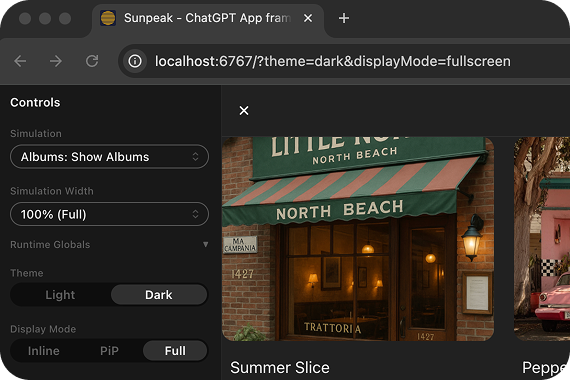
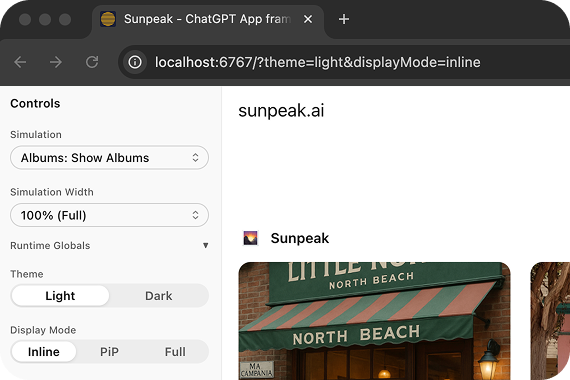 The `inspector.renderTool()` method accepts options for `theme`, `displayMode`, `sidebar`, and `timeout`. It hides inspector sidebars by default so app e2e tests do not depend on inspector layout. For advanced URL parameters, see the [Inspector API Reference](/docs/testing/inspector#createinspectorurl).
The config is a one-liner:
```typescript theme={null}
// playwright.config.ts
import { defineConfig } from 'sunpeak/test/config';
export default defineConfig();
```
### Testing Backend-Only Tools
If your resource calls backend tools via [`useCallServerTool`](/docs/app-framework/hooks/use-call-server-tool), define mock responses using the `serverTools` field in the [simulation JSON](/docs/testing/simulations). The inspector resolves these mocks based on the tool call arguments:
```json theme={null}
// tests/simulations/review-purchase.json
{
"tool": "review-purchase",
"toolResult": { "structuredContent": { "..." } },
"serverTools": {
"review": [
{
"when": { "confirmed": true },
"result": {
"content": [{ "type": "text", "text": "Completed." }],
"structuredContent": { "status": "success", "message": "Completed." }
}
},
{
"when": { "confirmed": false },
"result": {
"content": [{ "type": "text", "text": "Cancelled." }],
"structuredContent": { "status": "cancelled", "message": "Cancelled." }
}
}
]
}
}
```
```typescript theme={null}
import { test, expect } from 'sunpeak/test';
test('should show success when server confirms', async ({ inspector }) => {
const result = await inspector.renderTool('review-purchase');
const app = result.app();
await app.locator('button:has-text("Place Order")').evaluate((el) => (el as HTMLElement).click());
await expect(app.locator('text=Completed.')).toBeVisible({ timeout: 10000 });
});
```
The `serverTools` field supports both simple (single result) and conditional (`when`/`result` array) forms. See [Simulation API Reference](/docs/testing/simulations#mocking-server-tool-calls) for details.
### Example E2E Test Structure
A typical e2e test file tests a resource across different modes. Each test runs automatically against both ChatGPT and Claude hosts:
```typescript theme={null}
import { test, expect } from 'sunpeak/test';
test('should render album cards', async ({ inspector }) => {
const result = await inspector.renderTool('show-albums', {}, { theme: 'light' });
const app = result.app();
await expect(app.locator('button:has-text("Summer Slice")')).toBeVisible();
});
test('should render with dark theme', async ({ inspector }) => {
const result = await inspector.renderTool('show-albums', {}, { theme: 'dark' });
const app = result.app();
await expect(app.locator('button:has-text("Summer Slice")')).toBeVisible();
});
test('should render in fullscreen', async ({ inspector }) => {
const result = await inspector.renderTool('show-albums', {}, { displayMode: 'fullscreen' });
const app = result.app();
await expect(app.locator('button:has-text("Summer Slice")')).toBeVisible();
});
```
## Visual Regression Testing
Visual regression tests capture screenshots and compare them against saved baselines. This catches unintended visual changes across themes, display modes, and hosts.
Screenshot comparisons only run when you pass `--visual`. Without it, `result.screenshot()` calls are silently skipped, so you can include them in your regular e2e tests without affecting normal runs.
```bash theme={null}
pnpm test:visual # Compare against baselines
pnpm test:visual -- --update # Update baselines
```
```bash theme={null}
npm run test:visual # Compare against baselines
npm run test:visual -- --update # Update baselines
```
```bash theme={null}
yarn test:visual # Compare against baselines
yarn test:visual --update # Update baselines
```
Use `result.screenshot()` in any e2e test:
```typescript theme={null}
import { test, expect } from 'sunpeak/test';
test('albums renders correctly', async ({ inspector }) => {
const result = await inspector.renderTool('show-albums', {}, { theme: 'light' });
const app = result.app();
await expect(app.locator('button:has-text("Summer Slice")')).toBeVisible();
await result.screenshot('albums-light');
});
```
By default, `inspector.renderTool()` hides the inspector sidebars, and `screenshot()` captures the app inside the double-iframe, so inspector UI changes do not break your app visual baselines. Pass a specific `element` locator to narrow the capture further:
```typescript theme={null}
await result.screenshot('card', { element: app.locator('.card') });
```
Configure project-wide visual defaults in your Playwright config:
```typescript theme={null}
import { defineConfig } from 'sunpeak/test/config';
export default defineConfig({
visual: {
threshold: 0.2,
maxDiffPixelRatio: 0.05,
},
});
```
## Live Testing
Live tests validate your MCP Apps inside real ChatGPT — not the inspector. They open a browser, navigate to ChatGPT, send messages that trigger tool calls against your MCP server, and verify the rendered app using Playwright assertions.
This catches issues that inspector tests can't: real MCP connection behavior, actual LLM tool invocation, host-specific iframe rendering, and production resource loading.
### Prerequisites
* **ChatGPT account** with MCP/Apps support
* **Tunnel tool** — [ngrok](https://ngrok.com/), [Cloudflare Tunnel](https://developers.cloudflare.com/cloudflare-one/connections/connect-networks/), or similar
* **Browser session** — Logged into chatgpt.com in Chrome, Arc, Brave, or Edge
### One-Time Setup
1. If Developer mode is not already enabled, click your user menu in the bottom-left corner and select **Settings > Security and login > Developer mode**
2. Return to the ChatGPT homepage and click **Plugins** in the sidebar
3. Open your app if it is already there, or select the **+** button to add it
4. **Make sure the app name matches your `package.json` `name` exactly.** Live tests type `/{appName} ...` to invoke your app, and ChatGPT matches on this name.
5. If you are adding the app, enter your tunnel URL with the `/mcp` path (e.g., `https://abc123.ngrok.io/mcp`) and save it
This only needs to be done once per tunnel URL pattern.
### Running Live Tests
```bash theme={null}
# Terminal 1: Start a tunnel to your MCP server
ngrok http 8000
# Terminal 2: Run live tests
pnpm test:live
```
```bash theme={null}
# Terminal 1: Start a tunnel to your MCP server
ngrok http 8000
# Terminal 2: Run live tests
npm run test:live
```
```bash theme={null}
# Terminal 1: Start a tunnel to your MCP server
ngrok http 8000
# Terminal 2: Run live tests
yarn test:live
```
The test runner:
1. Imports your ChatGPT session from your browser (Chrome, Arc, Brave, or Edge). Falls back to a manual login window if no session is found.
2. Starts `sunpeak dev --prod-resources` automatically
3. Refreshes the MCP server connection from its plugin details (once in globalSetup, before all workers)
4. Runs `tests/live/*.spec.ts` files fully in parallel — each test gets its own chat window
Live tests always run with a visible browser window. chatgpt.com uses bot detection that blocks headless browsers.
### Writing Live Tests
Import `test` and `expect` from `sunpeak/test/live` to get a `live` fixture that handles auth, message sending, and iframe access automatically:
```typescript theme={null}
// tests/live/weather.spec.ts
import { test, expect } from 'sunpeak/test/live';
test('weather tool renders forecast', async ({ live }) => {
// invoke() starts a new chat, sends the prompt, and returns the app iframe
const app = await live.invoke('show me the weather in Austin');
await expect(app.locator('h1')).toBeVisible();
});
```
The `live` fixture provides:
* **`invoke(prompt)`** — starts a new chat, sends the prompt (with host-specific formatting like `/{appName}` for ChatGPT), waits for the app iframe, and returns a `FrameLocator`
* **`startNewChat()`** — opens a fresh conversation (for multi-step flows)
* **`sendMessage(text)`** — sends a message with host-appropriate formatting
* **`waitForAppIframe()`** — waits for the MCP app iframe to render and returns a `FrameLocator`
* **`sendRawMessage(text)`** — sends a message without any prefix
* **`setColorScheme(scheme, appFrame?)`** — switches the host to `'light'` or `'dark'` theme; optionally pass an app `FrameLocator` to wait for it to update
* **`page`** — raw Playwright `Page` object for advanced assertions
The Playwright config is a one-liner:
```typescript theme={null}
// tests/live/playwright.config.ts
import { defineLiveConfig } from 'sunpeak/test/live/config';
export default defineLiveConfig();
```
The config generates one Playwright project per host (by default, just `chatgpt`). When new hosts are supported, add them with a one-line change:
```typescript theme={null}
import { defineLiveConfig } from 'sunpeak/test/live/config';
export default defineLiveConfig({ hosts: ['chatgpt', 'claude'] });
```
sunpeak maintains all host DOM interaction, including selectors, login, app management navigation, and iframe access. You only write resource assertions, and the same test code runs across all hosts.
### Troubleshooting
On first run, a browser window opens for you to log in to ChatGPT. The session is saved to `.auth/chatgpt.json` but typically only lasts a few hours because Cloudflare's `cf_clearance` cookie is HttpOnly and cannot be persisted across runs. When you see this error, just re-authenticate in the browser window that opens. If it keeps failing, delete the `.auth/` directory and run `pnpm test:live` again.
Verify your tunnel is running and the URL is correct. The test checks the tunnel's `/health` endpoint before proceeding.
ChatGPT occasionally updates their UI. sunpeak checks selector health at startup. If selectors are stale, please file an issue.
Live tests use specific prompts like "Use the show-albums tool to..." to reliably trigger tool calls. If a tool isn't called, the test retries once. Persistent failures may indicate the tool isn't properly connected. Check the developer-mode app under ChatGPT Plugins.
## Evals (Multi-Model Testing)
Evals test whether different LLMs call your tools correctly. A tool description that GPT-4o interprets well might confuse Gemini. Evals connect to your MCP server, discover its tools, and send prompts to multiple models to check tool calling behavior. Cases can include App Context for follow-up prompts that depend on model-visible UI state.
### Prerequisites
* **Vercel AI SDK**: install `ai`
* **Provider packages** (install only what you need):
* `@ai-sdk/openai` for GPT-4o, GPT-4o-mini, o4-mini
* `@ai-sdk/anthropic` for Claude Sonnet, Claude Haiku
* `@ai-sdk/google` for Gemini 2.0 Flash
* **API keys** in `tests/evals/.env` (gitignored) or environment variables
Evals are scaffolded automatically by `sunpeak new` and `sunpeak test init`.
### Configuration
Configure models in `tests/evals/eval.config.ts`:
```typescript theme={null}
import { defineEvalConfig } from 'sunpeak/eval';
// API keys are loaded automatically from tests/evals/.env (gitignored).
export default defineEvalConfig({
// Server is auto-detected for sunpeak projects.
// For non-sunpeak projects: server: 'http://localhost:8000/mcp',
models: ['gpt-4o', 'o4-mini', 'claude-sonnet-4-20250514', 'gemini-2.0-flash'],
defaults: {
runs: 10, // Run each case 10 times per model
maxSteps: 1, // Max tool call steps per run
temperature: 0, // Most deterministic results
timeout: 30_000, // Timeout per run in ms
},
});
```
Copy `tests/evals/.env.example` to `tests/evals/.env` and add your API keys:
```bash theme={null}
# tests/evals/.env
OPENAI_API_KEY=sk-...
ANTHROPIC_API_KEY=sk-ant-...
GOOGLE_GENERATIVE_AI_API_KEY=...
```
For sunpeak projects, the dev server starts automatically when you run evals.
### Writing Evals
Create eval specs in `tests/evals/*.eval.ts`. Each file defines cases with prompts, optional App Context, and expected tool calls:
```typescript theme={null}
// tests/evals/show-albums.eval.ts
import { expect } from 'vitest';
import { defineEval } from 'sunpeak/eval';
export default defineEval({
cases: [
{
name: 'food category request',
prompt: 'Show me photos from my Austin pizza tour',
expect: {
tool: 'show-albums',
args: { category: expect.stringContaining('food') },
},
},
{
name: 'multi-step review flow',
prompt: 'Write a launch post for X and LinkedIn',
maxSteps: 3,
expect: [
{ tool: 'review-post' },
{ tool: 'publish-post' },
],
},
{
name: 'follow-up uses selected app state',
prompt: 'Book this one',
appContext: {
structuredContent: {
selectedFlight: { carrier: 'delta', flightNumber: 'DL123' },
},
},
expect: {
tool: 'book-flight',
args: { carrier: 'delta' },
},
},
],
});
```
Three assertion levels:
1. **Single tool** — `expect: { tool: 'name', args: { ... } }` checks the first tool call with partial argument matching
2. **Ordered sequence** — `expect: [{ tool: 'a' }, { tool: 'b' }]` checks multi-step tool call order
3. **Custom function** — `assert: (result) => { ... }` gives full access to all tool calls, text, and usage data
Use `appContext` for follow-up turns that depend on `updateModelContext` or `useAppState`, such as "Book this one" when the app has already shared the selected flight. The field accepts `structuredContent` for JSON state and `content` for model-visible content blocks.
### Running
```bash theme={null}
pnpm test:eval # Run all evals
pnpm test:eval -- tests/evals/albums.eval.ts # Run one eval file
```
```bash theme={null}
npm run test:eval # Run all evals
npm run test:eval -- tests/evals/albums.eval.ts # Run one eval file
```
```bash theme={null}
yarn test:eval # Run all evals
yarn test:eval tests/evals/albums.eval.ts # Run one eval file
```
### Output
Each case runs N times per model. The reporter shows pass/fail counts:
```
show-albums
food category request
✓ gpt-4o 10/10 passed (100%) avg 1200ms
~ claude-sonnet 9/10 passed (90%) avg 800ms
✗ gemini-flash 6/10 passed (60%) avg 900ms
└ called 'get-photos' instead of 'show-albums' (4x)
Summary: 25/30 passed (83%) across 3 model(s)
```
### Per-Eval Overrides
Override models, runs, or pass threshold for specific eval files:
```typescript theme={null}
export default defineEval({
models: ['gpt-4o'], // Only test this eval against GPT-4o
runs: 5, // Override run count
threshold: 0.8, // Pass if 80%+ of runs succeed (default: 100%)
cases: [/* ... */],
});
```
## Learn More
The inspector that powers E2E tests.
JSON schema, conventions, and auto-discovery.
createInspectorUrl parameters and Inspector component props.
Complete documentation for all five testing levels.
The `inspector.renderTool()` method accepts options for `theme`, `displayMode`, `sidebar`, and `timeout`. It hides inspector sidebars by default so app e2e tests do not depend on inspector layout. For advanced URL parameters, see the [Inspector API Reference](/docs/testing/inspector#createinspectorurl).
The config is a one-liner:
```typescript theme={null}
// playwright.config.ts
import { defineConfig } from 'sunpeak/test/config';
export default defineConfig();
```
### Testing Backend-Only Tools
If your resource calls backend tools via [`useCallServerTool`](/docs/app-framework/hooks/use-call-server-tool), define mock responses using the `serverTools` field in the [simulation JSON](/docs/testing/simulations). The inspector resolves these mocks based on the tool call arguments:
```json theme={null}
// tests/simulations/review-purchase.json
{
"tool": "review-purchase",
"toolResult": { "structuredContent": { "..." } },
"serverTools": {
"review": [
{
"when": { "confirmed": true },
"result": {
"content": [{ "type": "text", "text": "Completed." }],
"structuredContent": { "status": "success", "message": "Completed." }
}
},
{
"when": { "confirmed": false },
"result": {
"content": [{ "type": "text", "text": "Cancelled." }],
"structuredContent": { "status": "cancelled", "message": "Cancelled." }
}
}
]
}
}
```
```typescript theme={null}
import { test, expect } from 'sunpeak/test';
test('should show success when server confirms', async ({ inspector }) => {
const result = await inspector.renderTool('review-purchase');
const app = result.app();
await app.locator('button:has-text("Place Order")').evaluate((el) => (el as HTMLElement).click());
await expect(app.locator('text=Completed.')).toBeVisible({ timeout: 10000 });
});
```
The `serverTools` field supports both simple (single result) and conditional (`when`/`result` array) forms. See [Simulation API Reference](/docs/testing/simulations#mocking-server-tool-calls) for details.
### Example E2E Test Structure
A typical e2e test file tests a resource across different modes. Each test runs automatically against both ChatGPT and Claude hosts:
```typescript theme={null}
import { test, expect } from 'sunpeak/test';
test('should render album cards', async ({ inspector }) => {
const result = await inspector.renderTool('show-albums', {}, { theme: 'light' });
const app = result.app();
await expect(app.locator('button:has-text("Summer Slice")')).toBeVisible();
});
test('should render with dark theme', async ({ inspector }) => {
const result = await inspector.renderTool('show-albums', {}, { theme: 'dark' });
const app = result.app();
await expect(app.locator('button:has-text("Summer Slice")')).toBeVisible();
});
test('should render in fullscreen', async ({ inspector }) => {
const result = await inspector.renderTool('show-albums', {}, { displayMode: 'fullscreen' });
const app = result.app();
await expect(app.locator('button:has-text("Summer Slice")')).toBeVisible();
});
```
## Visual Regression Testing
Visual regression tests capture screenshots and compare them against saved baselines. This catches unintended visual changes across themes, display modes, and hosts.
Screenshot comparisons only run when you pass `--visual`. Without it, `result.screenshot()` calls are silently skipped, so you can include them in your regular e2e tests without affecting normal runs.
```bash theme={null}
pnpm test:visual # Compare against baselines
pnpm test:visual -- --update # Update baselines
```
```bash theme={null}
npm run test:visual # Compare against baselines
npm run test:visual -- --update # Update baselines
```
```bash theme={null}
yarn test:visual # Compare against baselines
yarn test:visual --update # Update baselines
```
Use `result.screenshot()` in any e2e test:
```typescript theme={null}
import { test, expect } from 'sunpeak/test';
test('albums renders correctly', async ({ inspector }) => {
const result = await inspector.renderTool('show-albums', {}, { theme: 'light' });
const app = result.app();
await expect(app.locator('button:has-text("Summer Slice")')).toBeVisible();
await result.screenshot('albums-light');
});
```
By default, `inspector.renderTool()` hides the inspector sidebars, and `screenshot()` captures the app inside the double-iframe, so inspector UI changes do not break your app visual baselines. Pass a specific `element` locator to narrow the capture further:
```typescript theme={null}
await result.screenshot('card', { element: app.locator('.card') });
```
Configure project-wide visual defaults in your Playwright config:
```typescript theme={null}
import { defineConfig } from 'sunpeak/test/config';
export default defineConfig({
visual: {
threshold: 0.2,
maxDiffPixelRatio: 0.05,
},
});
```
## Live Testing
Live tests validate your MCP Apps inside real ChatGPT — not the inspector. They open a browser, navigate to ChatGPT, send messages that trigger tool calls against your MCP server, and verify the rendered app using Playwright assertions.
This catches issues that inspector tests can't: real MCP connection behavior, actual LLM tool invocation, host-specific iframe rendering, and production resource loading.
### Prerequisites
* **ChatGPT account** with MCP/Apps support
* **Tunnel tool** — [ngrok](https://ngrok.com/), [Cloudflare Tunnel](https://developers.cloudflare.com/cloudflare-one/connections/connect-networks/), or similar
* **Browser session** — Logged into chatgpt.com in Chrome, Arc, Brave, or Edge
### One-Time Setup
1. If Developer mode is not already enabled, click your user menu in the bottom-left corner and select **Settings > Security and login > Developer mode**
2. Return to the ChatGPT homepage and click **Plugins** in the sidebar
3. Open your app if it is already there, or select the **+** button to add it
4. **Make sure the app name matches your `package.json` `name` exactly.** Live tests type `/{appName} ...` to invoke your app, and ChatGPT matches on this name.
5. If you are adding the app, enter your tunnel URL with the `/mcp` path (e.g., `https://abc123.ngrok.io/mcp`) and save it
This only needs to be done once per tunnel URL pattern.
### Running Live Tests
```bash theme={null}
# Terminal 1: Start a tunnel to your MCP server
ngrok http 8000
# Terminal 2: Run live tests
pnpm test:live
```
```bash theme={null}
# Terminal 1: Start a tunnel to your MCP server
ngrok http 8000
# Terminal 2: Run live tests
npm run test:live
```
```bash theme={null}
# Terminal 1: Start a tunnel to your MCP server
ngrok http 8000
# Terminal 2: Run live tests
yarn test:live
```
The test runner:
1. Imports your ChatGPT session from your browser (Chrome, Arc, Brave, or Edge). Falls back to a manual login window if no session is found.
2. Starts `sunpeak dev --prod-resources` automatically
3. Refreshes the MCP server connection from its plugin details (once in globalSetup, before all workers)
4. Runs `tests/live/*.spec.ts` files fully in parallel — each test gets its own chat window
Live tests always run with a visible browser window. chatgpt.com uses bot detection that blocks headless browsers.
### Writing Live Tests
Import `test` and `expect` from `sunpeak/test/live` to get a `live` fixture that handles auth, message sending, and iframe access automatically:
```typescript theme={null}
// tests/live/weather.spec.ts
import { test, expect } from 'sunpeak/test/live';
test('weather tool renders forecast', async ({ live }) => {
// invoke() starts a new chat, sends the prompt, and returns the app iframe
const app = await live.invoke('show me the weather in Austin');
await expect(app.locator('h1')).toBeVisible();
});
```
The `live` fixture provides:
* **`invoke(prompt)`** — starts a new chat, sends the prompt (with host-specific formatting like `/{appName}` for ChatGPT), waits for the app iframe, and returns a `FrameLocator`
* **`startNewChat()`** — opens a fresh conversation (for multi-step flows)
* **`sendMessage(text)`** — sends a message with host-appropriate formatting
* **`waitForAppIframe()`** — waits for the MCP app iframe to render and returns a `FrameLocator`
* **`sendRawMessage(text)`** — sends a message without any prefix
* **`setColorScheme(scheme, appFrame?)`** — switches the host to `'light'` or `'dark'` theme; optionally pass an app `FrameLocator` to wait for it to update
* **`page`** — raw Playwright `Page` object for advanced assertions
The Playwright config is a one-liner:
```typescript theme={null}
// tests/live/playwright.config.ts
import { defineLiveConfig } from 'sunpeak/test/live/config';
export default defineLiveConfig();
```
The config generates one Playwright project per host (by default, just `chatgpt`). When new hosts are supported, add them with a one-line change:
```typescript theme={null}
import { defineLiveConfig } from 'sunpeak/test/live/config';
export default defineLiveConfig({ hosts: ['chatgpt', 'claude'] });
```
sunpeak maintains all host DOM interaction, including selectors, login, app management navigation, and iframe access. You only write resource assertions, and the same test code runs across all hosts.
### Troubleshooting
On first run, a browser window opens for you to log in to ChatGPT. The session is saved to `.auth/chatgpt.json` but typically only lasts a few hours because Cloudflare's `cf_clearance` cookie is HttpOnly and cannot be persisted across runs. When you see this error, just re-authenticate in the browser window that opens. If it keeps failing, delete the `.auth/` directory and run `pnpm test:live` again.
Verify your tunnel is running and the URL is correct. The test checks the tunnel's `/health` endpoint before proceeding.
ChatGPT occasionally updates their UI. sunpeak checks selector health at startup. If selectors are stale, please file an issue.
Live tests use specific prompts like "Use the show-albums tool to..." to reliably trigger tool calls. If a tool isn't called, the test retries once. Persistent failures may indicate the tool isn't properly connected. Check the developer-mode app under ChatGPT Plugins.
## Evals (Multi-Model Testing)
Evals test whether different LLMs call your tools correctly. A tool description that GPT-4o interprets well might confuse Gemini. Evals connect to your MCP server, discover its tools, and send prompts to multiple models to check tool calling behavior. Cases can include App Context for follow-up prompts that depend on model-visible UI state.
### Prerequisites
* **Vercel AI SDK**: install `ai`
* **Provider packages** (install only what you need):
* `@ai-sdk/openai` for GPT-4o, GPT-4o-mini, o4-mini
* `@ai-sdk/anthropic` for Claude Sonnet, Claude Haiku
* `@ai-sdk/google` for Gemini 2.0 Flash
* **API keys** in `tests/evals/.env` (gitignored) or environment variables
Evals are scaffolded automatically by `sunpeak new` and `sunpeak test init`.
### Configuration
Configure models in `tests/evals/eval.config.ts`:
```typescript theme={null}
import { defineEvalConfig } from 'sunpeak/eval';
// API keys are loaded automatically from tests/evals/.env (gitignored).
export default defineEvalConfig({
// Server is auto-detected for sunpeak projects.
// For non-sunpeak projects: server: 'http://localhost:8000/mcp',
models: ['gpt-4o', 'o4-mini', 'claude-sonnet-4-20250514', 'gemini-2.0-flash'],
defaults: {
runs: 10, // Run each case 10 times per model
maxSteps: 1, // Max tool call steps per run
temperature: 0, // Most deterministic results
timeout: 30_000, // Timeout per run in ms
},
});
```
Copy `tests/evals/.env.example` to `tests/evals/.env` and add your API keys:
```bash theme={null}
# tests/evals/.env
OPENAI_API_KEY=sk-...
ANTHROPIC_API_KEY=sk-ant-...
GOOGLE_GENERATIVE_AI_API_KEY=...
```
For sunpeak projects, the dev server starts automatically when you run evals.
### Writing Evals
Create eval specs in `tests/evals/*.eval.ts`. Each file defines cases with prompts, optional App Context, and expected tool calls:
```typescript theme={null}
// tests/evals/show-albums.eval.ts
import { expect } from 'vitest';
import { defineEval } from 'sunpeak/eval';
export default defineEval({
cases: [
{
name: 'food category request',
prompt: 'Show me photos from my Austin pizza tour',
expect: {
tool: 'show-albums',
args: { category: expect.stringContaining('food') },
},
},
{
name: 'multi-step review flow',
prompt: 'Write a launch post for X and LinkedIn',
maxSteps: 3,
expect: [
{ tool: 'review-post' },
{ tool: 'publish-post' },
],
},
{
name: 'follow-up uses selected app state',
prompt: 'Book this one',
appContext: {
structuredContent: {
selectedFlight: { carrier: 'delta', flightNumber: 'DL123' },
},
},
expect: {
tool: 'book-flight',
args: { carrier: 'delta' },
},
},
],
});
```
Three assertion levels:
1. **Single tool** — `expect: { tool: 'name', args: { ... } }` checks the first tool call with partial argument matching
2. **Ordered sequence** — `expect: [{ tool: 'a' }, { tool: 'b' }]` checks multi-step tool call order
3. **Custom function** — `assert: (result) => { ... }` gives full access to all tool calls, text, and usage data
Use `appContext` for follow-up turns that depend on `updateModelContext` or `useAppState`, such as "Book this one" when the app has already shared the selected flight. The field accepts `structuredContent` for JSON state and `content` for model-visible content blocks.
### Running
```bash theme={null}
pnpm test:eval # Run all evals
pnpm test:eval -- tests/evals/albums.eval.ts # Run one eval file
```
```bash theme={null}
npm run test:eval # Run all evals
npm run test:eval -- tests/evals/albums.eval.ts # Run one eval file
```
```bash theme={null}
yarn test:eval # Run all evals
yarn test:eval tests/evals/albums.eval.ts # Run one eval file
```
### Output
Each case runs N times per model. The reporter shows pass/fail counts:
```
show-albums
food category request
✓ gpt-4o 10/10 passed (100%) avg 1200ms
~ claude-sonnet 9/10 passed (90%) avg 800ms
✗ gemini-flash 6/10 passed (60%) avg 900ms
└ called 'get-photos' instead of 'show-albums' (4x)
Summary: 25/30 passed (83%) across 3 model(s)
```
### Per-Eval Overrides
Override models, runs, or pass threshold for specific eval files:
```typescript theme={null}
export default defineEval({
models: ['gpt-4o'], // Only test this eval against GPT-4o
runs: 5, // Override run count
threshold: 0.8, // Pass if 80%+ of runs succeed (default: 100%)
cases: [/* ... */],
});
```
## Learn More
The inspector that powers E2E tests.
JSON schema, conventions, and auto-discovery.
createInspectorUrl parameters and Inspector component props.
Complete documentation for all five testing levels.