> ## Documentation Index
> Fetch the complete documentation index at: https://sunpeak.ai/docs/llms.txt
> Use this file to discover all available pages before exploring further.
# MCP App Inspector
> Inspect MCP Apps in replicated ChatGPT and Claude runtimes.
## Quickstart
No installation required. Point the inspector at any running MCP server:
```bash theme={null}
npx sunpeak inspect --server http://localhost:8000/mcp
```
For stdio servers, pass the command directly:
```bash theme={null}
npx sunpeak inspect --server "python my_server.py"
npx sunpeak inspect --server "go run ./cmd/server"
```
This opens the inspector at `http://localhost:3000`. See [sunpeak inspect CLI Reference](/docs/testing/cli/inspect) for all options.
In sunpeak framework projects, the inspector is built into `sunpeak dev` automatically.
 ## What it does
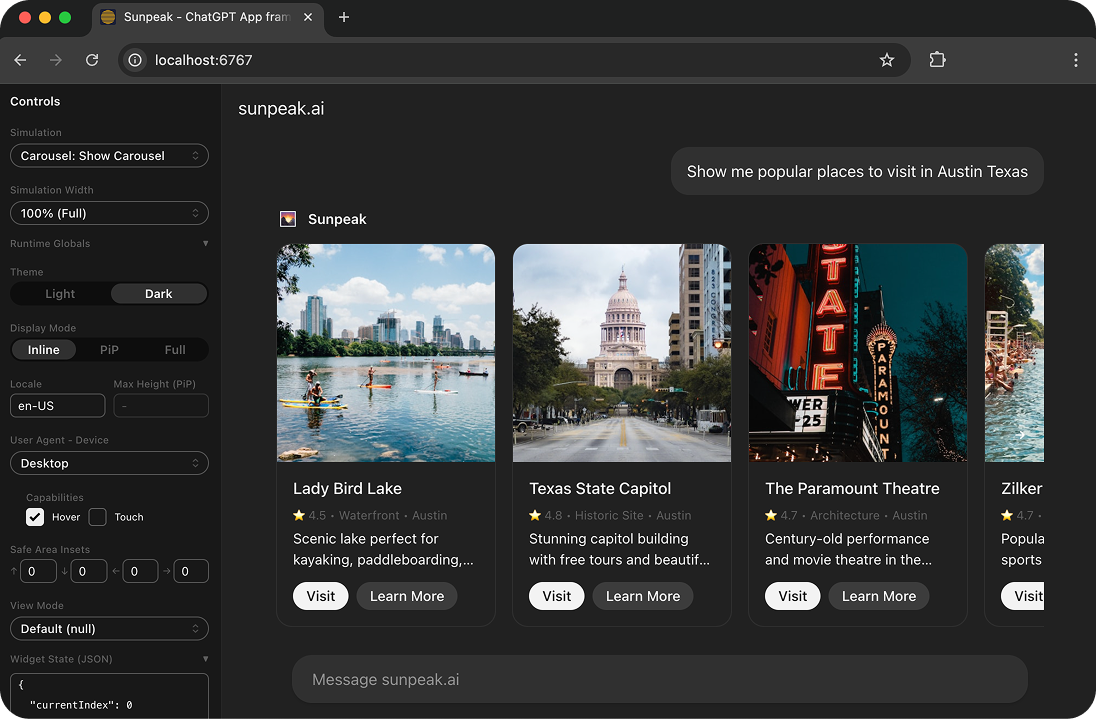
The inspector replicates the ChatGPT and Claude MCP App runtimes on your machine. Your MCP server's tools and resources render in the same iframe sandbox that production hosts use, with the same PostMessage protocol, the same CSS variables, and the same host context values.
* **Instant feedback** — HMR means changes appear immediately. No cache issues, no reloading the host.
* **Every host, theme, and device** — toggle ChatGPT/Claude, light/dark, mobile/tablet/desktop, inline/PiP/fullscreen from the sidebar.
* **No deployment needed** — no tunnel, no host account, no API credits.
* **Test runtime** — the inspector powers [E2E tests](/docs/testing/e2e). Load simulations via URL, assert with Playwright.
## Simulations
Simulations are JSON fixtures that define reproducible tool states for the inspector — tool input, tool result, and server tool mocks.
```json theme={null}
// tests/simulations/show-example.json
{
"tool": "show-example",
"userMessage": "Show me an example",
"toolInput": { "query": "example" },
"toolResult": {
"structuredContent": { "items": [] }
}
}
```
The inspector loads simulations from `tests/simulations/` automatically. Select a simulation from the sidebar dropdown to render your resource with that mock data. Select "None (call server)" to call the real tool handler instead.
See [Simulations API Reference](/docs/testing/simulations) for the complete JSON schema and conventions.
## Sidebar Controls
The inspector sidebars let you configure:
* **MCP Server** — URL to connect to (with connection status indicator)
* **Tool** — which tool to inspect, including backend-only tools without UI resources
* **Simulation** — which fixture to load (or "None" for real server calls)
* **Host** — ChatGPT or Claude runtime
* **Width** — mobile, tablet, or full-width viewport, including exact iPhone and iPad widths
* **Host Context** — [theme](/docs/app-framework/hooks/use-theme), [locale](/docs/app-framework/hooks/use-locale), [display mode](/docs/app-framework/hooks/use-display-mode), device preset, [platform](/docs/app-framework/hooks/use-platform), [device capabilities](/docs/app-framework/hooks/use-device-capabilities), [time zone](/docs/app-framework/hooks/use-time-zone), [container dimensions](/docs/app-framework/hooks/use-viewport), [safe area insets](/docs/app-framework/hooks/use-safe-area)
* **App Context** — model context JSON shared with the model via [`useUpdateModelContext()`](/docs/app-framework/hooks/use-update-model-context), shown in the right sidebar
* **Tool Input/Result** — editable JSON for the [tool arguments and structured content](/docs/app-framework/hooks/use-tool-data), shown in the right sidebar
Selecting a backend-only tool shows `Tool does not render a UI` in the preview, but the tool can still be called from the sidebar and its result is still shown.
Most runtime settings are reflected in the URL, making them shareable and usable in automated tests via [`createInspectorUrl`](/docs/testing/inspector#createinspectorurl). Sidebar preferences like host context, width adjustments, Prod Resources, and Model Chat provider/model are saved locally so they persist across refreshes.
## Using the Inspector in Tests
The inspector doubles as the test runtime for automated E2E tests. See [MCP Testing Framework](/docs/testing/overview) for the full testing story.
```typescript theme={null}
import { createInspectorUrl } from 'sunpeak/inspector';
test('renders in dark mode on Claude', async ({ page }) => {
await page.goto(
createInspectorUrl({
simulation: 'show-albums',
theme: 'dark',
host: 'claude',
})
);
// assert against the rendered resource
});
```
## Dive Deeper
Inspect any MCP server (standalone, no project needed).
JSON schema, conventions, and auto-discovery.
Full component documentation and configuration options.
## What it does
The inspector replicates the ChatGPT and Claude MCP App runtimes on your machine. Your MCP server's tools and resources render in the same iframe sandbox that production hosts use, with the same PostMessage protocol, the same CSS variables, and the same host context values.
* **Instant feedback** — HMR means changes appear immediately. No cache issues, no reloading the host.
* **Every host, theme, and device** — toggle ChatGPT/Claude, light/dark, mobile/tablet/desktop, inline/PiP/fullscreen from the sidebar.
* **No deployment needed** — no tunnel, no host account, no API credits.
* **Test runtime** — the inspector powers [E2E tests](/docs/testing/e2e). Load simulations via URL, assert with Playwright.
## Simulations
Simulations are JSON fixtures that define reproducible tool states for the inspector — tool input, tool result, and server tool mocks.
```json theme={null}
// tests/simulations/show-example.json
{
"tool": "show-example",
"userMessage": "Show me an example",
"toolInput": { "query": "example" },
"toolResult": {
"structuredContent": { "items": [] }
}
}
```
The inspector loads simulations from `tests/simulations/` automatically. Select a simulation from the sidebar dropdown to render your resource with that mock data. Select "None (call server)" to call the real tool handler instead.
See [Simulations API Reference](/docs/testing/simulations) for the complete JSON schema and conventions.
## Sidebar Controls
The inspector sidebars let you configure:
* **MCP Server** — URL to connect to (with connection status indicator)
* **Tool** — which tool to inspect, including backend-only tools without UI resources
* **Simulation** — which fixture to load (or "None" for real server calls)
* **Host** — ChatGPT or Claude runtime
* **Width** — mobile, tablet, or full-width viewport, including exact iPhone and iPad widths
* **Host Context** — [theme](/docs/app-framework/hooks/use-theme), [locale](/docs/app-framework/hooks/use-locale), [display mode](/docs/app-framework/hooks/use-display-mode), device preset, [platform](/docs/app-framework/hooks/use-platform), [device capabilities](/docs/app-framework/hooks/use-device-capabilities), [time zone](/docs/app-framework/hooks/use-time-zone), [container dimensions](/docs/app-framework/hooks/use-viewport), [safe area insets](/docs/app-framework/hooks/use-safe-area)
* **App Context** — model context JSON shared with the model via [`useUpdateModelContext()`](/docs/app-framework/hooks/use-update-model-context), shown in the right sidebar
* **Tool Input/Result** — editable JSON for the [tool arguments and structured content](/docs/app-framework/hooks/use-tool-data), shown in the right sidebar
Selecting a backend-only tool shows `Tool does not render a UI` in the preview, but the tool can still be called from the sidebar and its result is still shown.
Most runtime settings are reflected in the URL, making them shareable and usable in automated tests via [`createInspectorUrl`](/docs/testing/inspector#createinspectorurl). Sidebar preferences like host context, width adjustments, Prod Resources, and Model Chat provider/model are saved locally so they persist across refreshes.
## Using the Inspector in Tests
The inspector doubles as the test runtime for automated E2E tests. See [MCP Testing Framework](/docs/testing/overview) for the full testing story.
```typescript theme={null}
import { createInspectorUrl } from 'sunpeak/inspector';
test('renders in dark mode on Claude', async ({ page }) => {
await page.goto(
createInspectorUrl({
simulation: 'show-albums',
theme: 'dark',
host: 'claude',
})
);
// assert against the rendered resource
});
```
## Dive Deeper
Inspect any MCP server (standalone, no project needed).
JSON schema, conventions, and auto-discovery.
Full component documentation and configuration options.